Android Local Network Setup
This guide covers setting up PointlessPOS on an Android phone or tablet to connect via a local network IP address instead of a domain name. This is useful when your server is hosted on a local network without a public domain.
info
Connecting to a server using a domain name instead? See the Android Install guide instead.
Step 1: Download and Install the App
-
On your Android device, open your browser and go to:
-
Click the Download button to download
PointlessPOS Android.apk -
Once downloaded, run the APK file to install the app
Step 2: Initial Login
Before changing your domain settings, you must first log in to the demo site:
- Open the PointlessPOS app
- Log in using the demo site credentials
- Once logged in, go to Settings
- Tap Device Info
- Enable SSL Skip from the Device Info screen
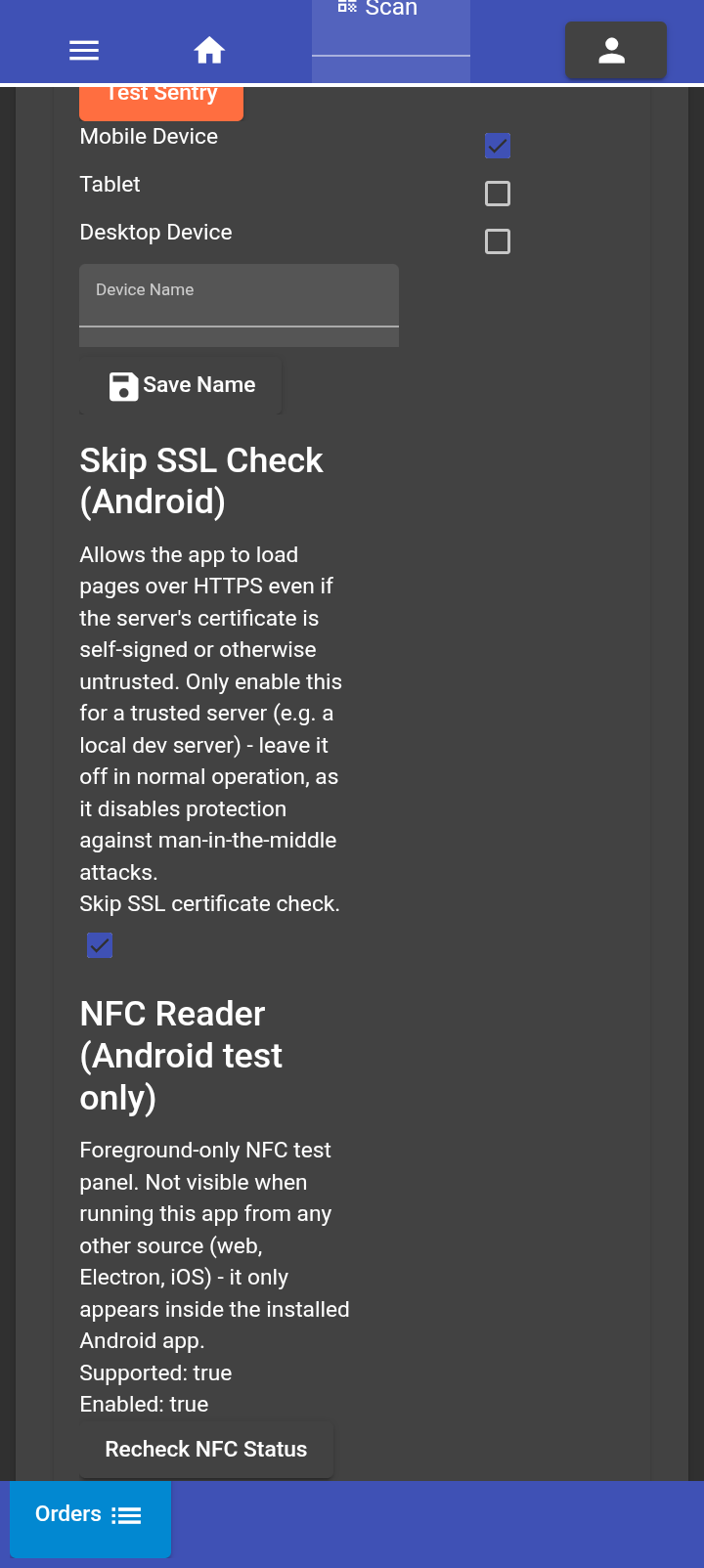
Enable SSL Skip
- Log out of the app
Step 3: Configure Local IP Address
- Access Settings in the app
- Click on the Pointless Logo 5 times to open the API configuration screen
- Instead of entering a domain, enter your server's IP Address
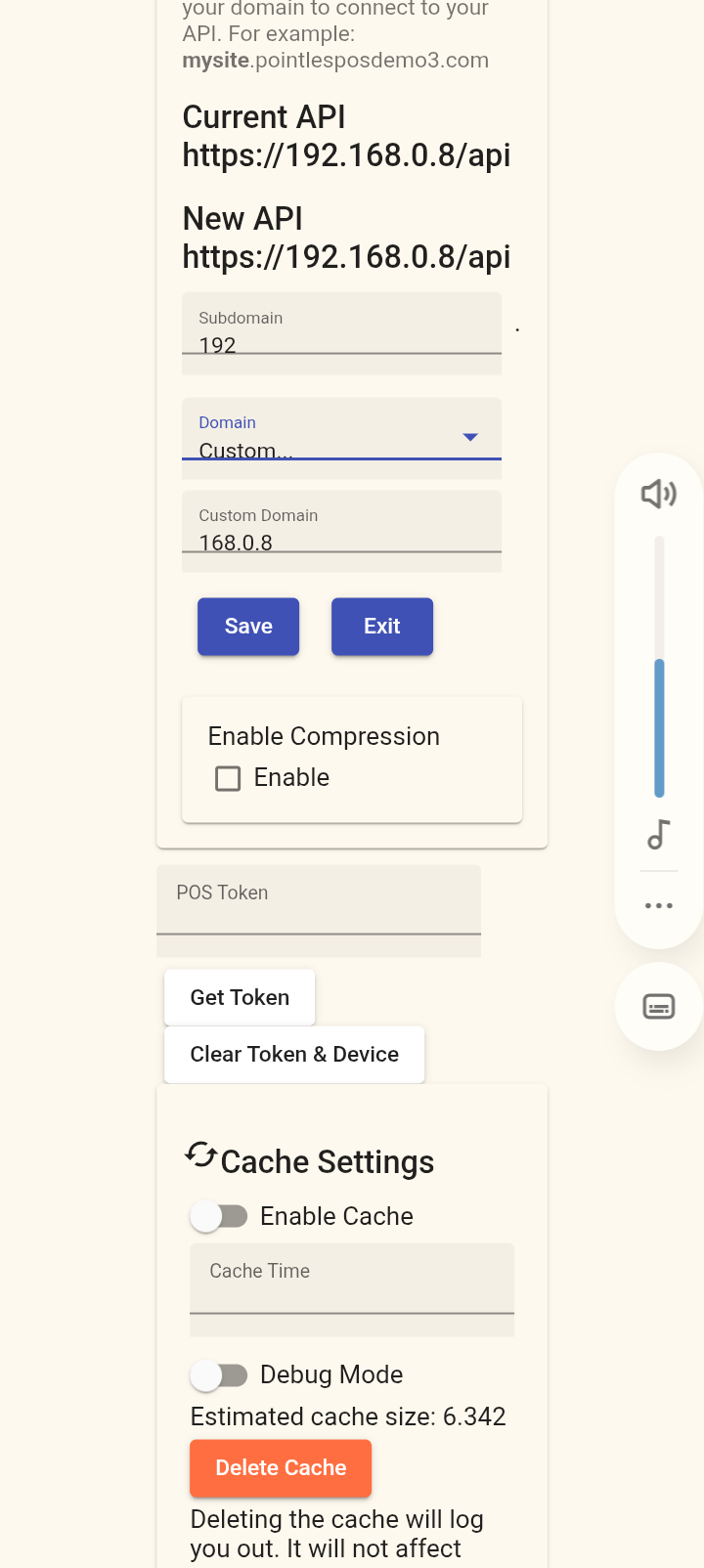
Set IP Address
- Press Get Token to confirm you are connected to the server
Step 4: Final Setup
- Restart the app completely
- Log in as Admin
- Set the device to a Terminal
tip
If you need to change the API link later, you can follow the Change API Link guide.