Importing Packages
Each & Gram
Importing packages begins with selecting your site from the site selector, then the from the drop down, your license. Next selectyour date range of what packages you want to download.
Once you have your list of packages, you can open them each and import them into your inventory.
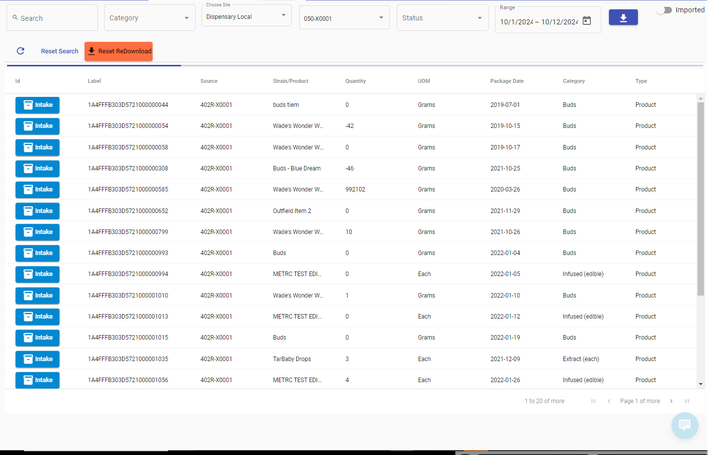
When working with packages, you should see something like the screen below. We have imported a list of packages.
As explained above, in the image we have the license assigned, the Site Assigned and a date range which we have imported, using the blue import button.
- You may toggle between 'imported' and un imported items. Imported items are ones that you have already received into inventory.
- You may search on the Label, Name, of the existing package you are looking for.
If you import along the same date range, it will not overwrite your existing items.
You can also reset the download, this will delete the packages you are attempting to import; and then re-download them.