Disable Sleep Mode A3700, and other pax units
How to modify screen timeout on PAX terminals
PAX PIN pads may enter sleep mode or experience a screen timeout while the device is not actively in use, which could interrupt communication with the POS system. Follow the steps below to modify the screen timeout / sleep settings on PAX terminals:
1Swipe up from the bottom of the screen. On some PAX devices (i.e. A30), you may need to swipe left from the right side of the screen.
2Touch the back key ◁ twice.

Welcome screen on PAX A35

Welcome screen on PAX A30
3When prompted for the Back Desktop password type "pax9876@@". Touch "Enter".
Note: “123456” may work on some devices as passwords may vary. For EVO Snap devices, use “EVO72963687” for the password.

Enter Back Desktop password
4Click on settings from the Android Desktop. Enter PAX Desktop password
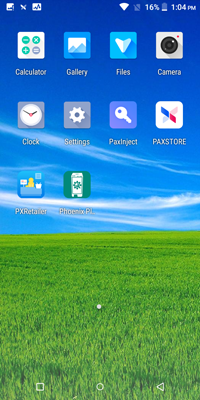
Android Desktop
Enter Back Desktop password
5Click on Display > Screen timeout / Sleep. Choose your screen timeout preference.

Settings

Display > Sleep

Display > Screen timeout

Sleep settings

Screen timeout settings
{#} {#}

RSPA Gold VAE Badge

Visa Service Provider
© 2025 Datacap Systems, Inc. All Rights Reserved | Privacy Policy | Terms of Use

KMA Approved
Datacap supports regulatory best practices in ADA and EMV with support of the Kiosk Industry Group and the Kiosk Association (KMA). The KMA works directly with the U.S. Access Board and is a participating organization with PCI SSC.