Import Menu
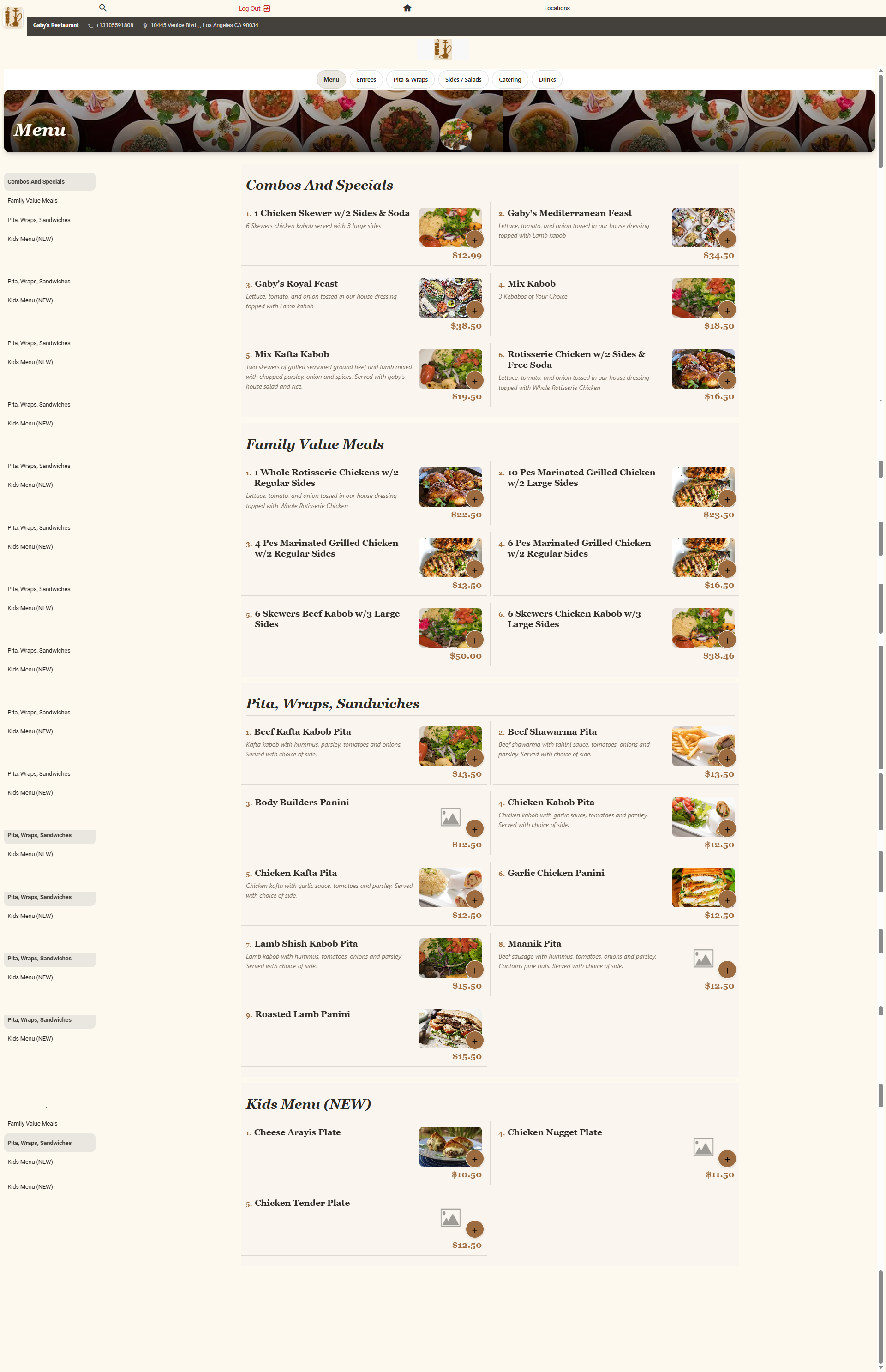
Pointless MCP can build or rebuild your menu directly from a photo, a website, or a file — no manual data entry required. Point it at a source and it reads the categories, items, prices, descriptions, and even item choice prompts (like size or topping options), then creates or updates the corresponding records in your catalog.
What You Can Import From
| Source | What MCP Reads |
|---|---|
| Photo | A picture of a printed or PDF menu — item names, prices, and descriptions as printed |
| Website | Your restaurant's public menu page — items, categories, and pricing |
| File | A spreadsheet or document listing menu items |
How It Works
- Open the MCP assistant and tell it what you want to do — for example, "Import this menu" — and provide the photo, website link, or file.
- MCP reads the source and identifies categories, menus, and items, along with prices, descriptions, and any choice prompts (size, spice level, add-ons, and similar options).
- MCP presents what it found for you to review before anything is saved.
- Once confirmed, MCP creates or updates the categories, menus, and items in your catalog to match.
Editing an Existing Menu Conversationally
Beyond importing from scratch, MCP can also change a menu you already have — just by describing what you want:
- Change prices — "Raise all appetizer prices by 10%."
- Resize item text — "Make the item names larger on the Drinks menu."
- Build a new prompt — Describe a new choice prompt (like a protein or meat-prep selection) one sentence at a time, and MCP builds each page of the prompt for you.
Reviewing Imported Items
After an import, review the new or updated items in the Product & Item Catalog the same way you would items entered manually. MCP-imported items use the same fields, so pricing, categories, and item types can be adjusted at any time.