Import Products
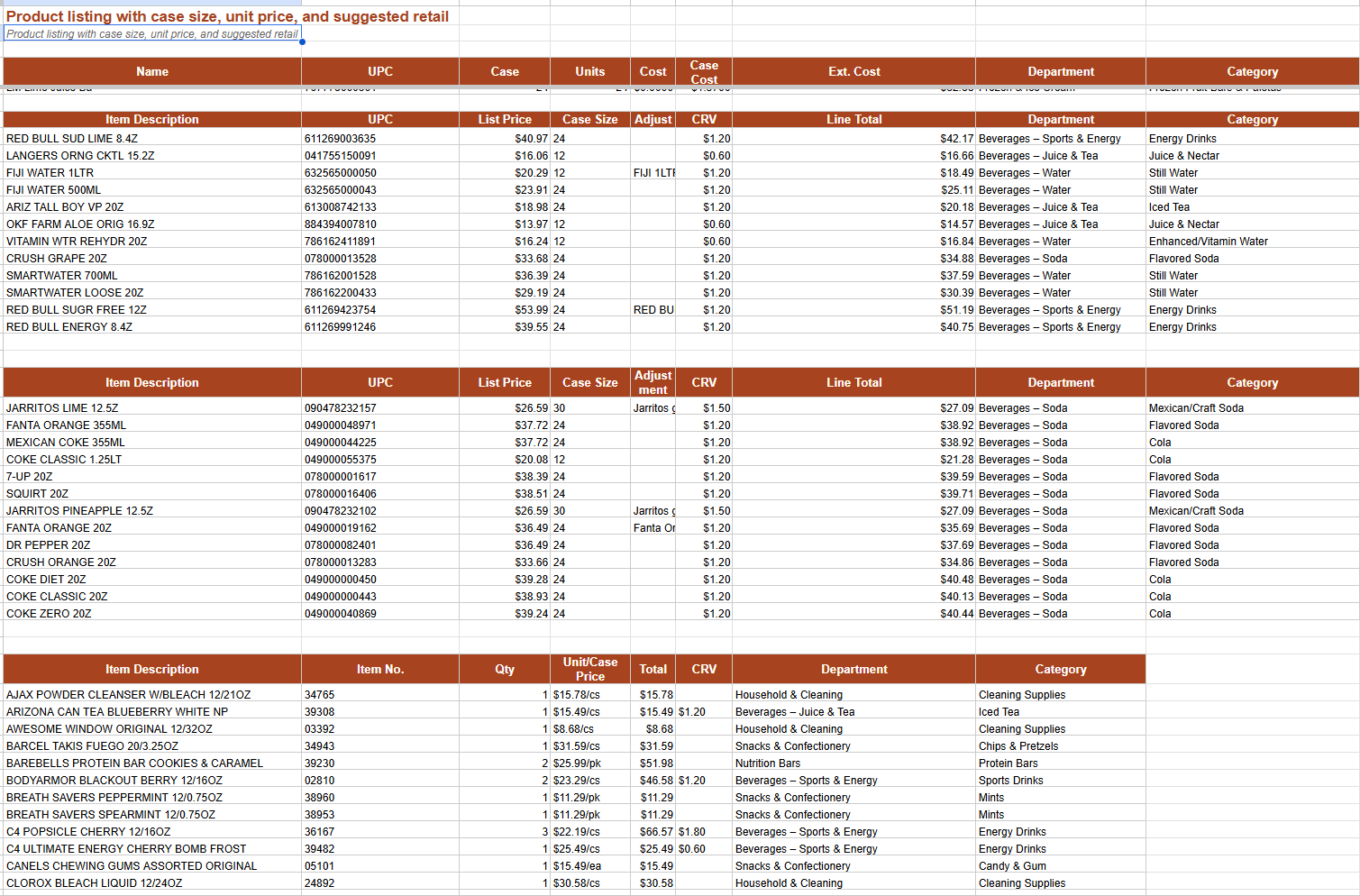
Every supplier sends product data differently — different column names, different layouts, sometimes several sections in one sheet. Pointless MCP doesn't require your file to match a template. It reads the sheet as-is, figures out what each column means, and matches it to your catalog.
What MCP Reads
- Name, UPC, cost, case size — whatever columns are present, in whatever order they appear
- Department and category — matched to your existing catalog structure, or inferred from the item description
- Pricing math — case cost, per-unit cost, and suggested retail, even when the sheet only provides some of these
What MCP Infers
If a column is missing entirely — for example, no department column, or no calculated per-unit cost — MCP fills in a reasonable value based on the rest of the sheet and flags it so you can double check it before saving.
How It Works
- Open the MCP assistant and provide the supplier's file — a spreadsheet, CSV, or exported PDF.
- MCP scans the columns and rows, identifying product names, UPCs, costs, case sizes, and any department or category information.
- MCP maps each item to your catalog, matching existing products where possible and preparing new entries for anything not already in your system.
- Review the mapped items before MCP commits them to your product catalog.
After Import
Newly imported or updated products behave exactly like items entered manually — you can adjust pricing, categories, item types, and barcodes at any time from the Product & Item Catalog.