Caching
Using Browser Memory and Server Memory for Performance
How to Change Caching: If you want to change or disable caching for testing purposes or you are adding large amounts of inventory that should immediately be available. After you change these settings, you should see your items show up. If you disable caching you will see that each time you pull items or pull up pages, they will take a moment longer to receive, because your database will always be queried.
{#} {#}
From Your App
From your app, or browser: Go to Settings then Data, then make sure the cache is disabled.
From Your Server
In your Webapi Folder, you will disable the server caching. Go where you replace the WebAPI contents. There is a file named: web.config. Open that up. Use Ctrl+F to find this DefaultCacheDurationSeconds
You will find this value:
<add key="DefaultCacheDurationSeconds" value ="7200"></add>
Change it so the value is 0 like this:
<add key="DefaultCacheDurationSeconds" value ="0"></add>
Restart IIS
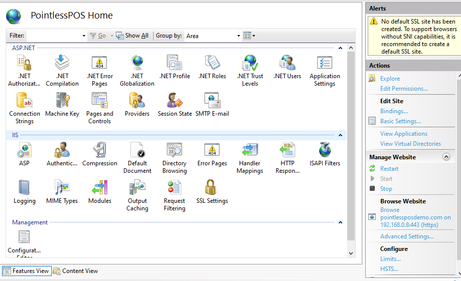
Open the IIS and press the restart. It is on the right side. It should immediately restart.