Balance Sheets
Overview
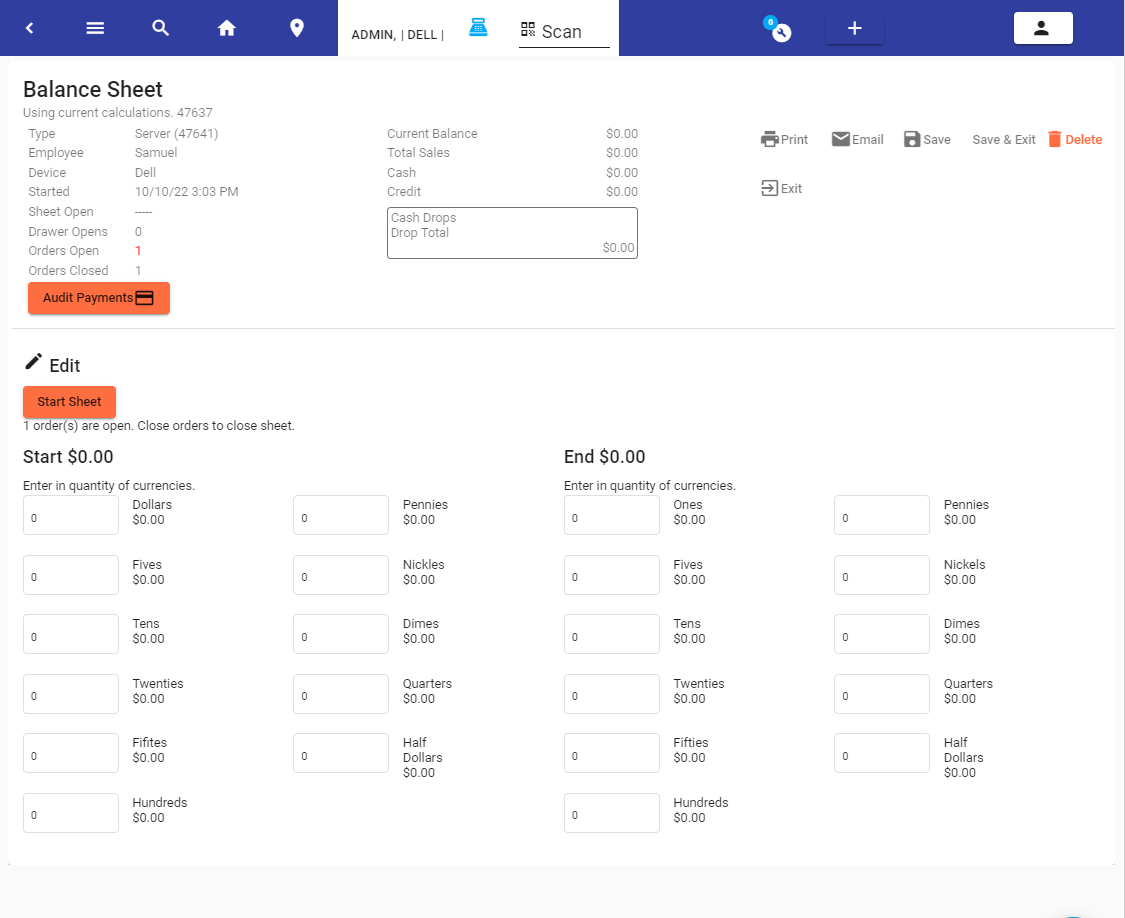
Balance Sheets are how users and cashiers keep track of the money they take in. They are not sales reports, that’s important to keep in mind. They can be set up to only show the user when the balance is correct (for when counting cash), this is what we call a blind close. Users are not shown if their drawer is over or under, as both negative a positive values are frowned upon.
Balance sheets automatically are opened when a user opens the cashier station or their own handheld device for the first time during a shift. While it’s preferred to enter the money in the drawer, or in hand at that moment, a user can skip ahead and perform sales before counting their money.
Each drawer usually starts with a balance. While the user doesn’t have to count the money, it’s preferred that they do. If a cash drawer starts with money, and the cashier assumes the starting values, if they are short at the end of the day, it could have been because the drawer didn’t have what they expected in the beginning. If you absolutely know the starting value, it’s easy to just enter the value in the 1.00 value section.
Closing the Day:
From the menu on the left, it may be named differently, navigate to the daily report.
Once the report is ready to close, it will display a statement that it's ready; if it is not ready to close you will have some things to review. These could be open orders, balance sheets or possibly something else.
- Depending on the staff, the sales details may be visible or not.
- For anyone authorized to close the day, the heading will show, and the exceptions for before closing will be shown.
Other Features:
The balance sheet can be printed, and at the end of the shift, if enabled, the balance sheet will be emailed to management.
For more about the balance sheets - see the Audit section, where you can learn about reviewing past balance sheets and as a manager, reviewing open balance sheets.
Configuration - For Administration
Settings - Authorizations & Access - User Types
User Type Auths:
View Balance Sheet - For managers, and admins.
Blind Close - to Prevent view of sales totals and over and undervalues.
User Type Behaviors:
In the user is User Type setup, in the auth section. Then each user who logs in will be prompted to enter their balance sheet per individual. Otherwise, the default is to open the balance sheet only for the first user who logs in, and the balance sheet is assigned to the device.
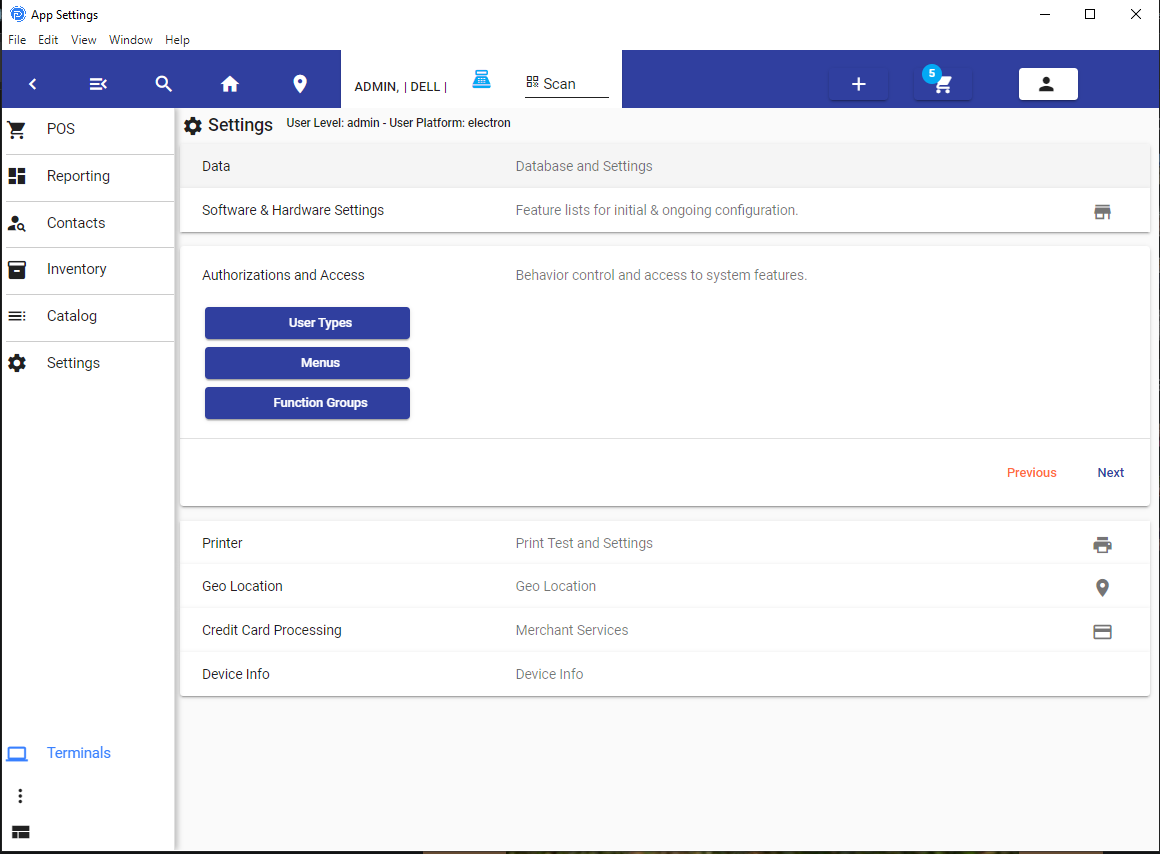
Choose the type, then change the features: