Managing Orders
Transaction Types, Prep Screens, Order Actions and Filters
Overview
Orders are shorthand for the many ways Pointless uses to sell products but also convert deplete, or adjust inventory through transactions.
Different kinds of businesses use different types of orders. So the orders you see below might not represent the orders in your system, but the essence will have many of the same features.
Examples of orders would be: Take Out, Retail, Medical Sale, Donation, Conversion, Buy Back, and Refund.
To get to the orders, you would in the screen below the Blue Register Button in the center of the top toolbar.
The order management screen has a variety of options. You are free to review them at your leisure. You can view orders as cards, or as a list.
Transaction Settings
Navigate to Settings - Software and Hardware Settings - Transaction Types
<table class="docsie-table docsie-table-bordered "><colgroup><col style="width: auto;"><col style="width: auto;"></colgroup><tbody><tr><td class="left" id="cell-a20mi">Taxable</td><td class="left" id="cell-efrfe">To enable tax for this type of transaction.</td></tr><tr><td class="left" id="cell-dajfe">Show Order Type</td><td class="left" id="cell-1e3h">Not all transactions should be shown on the POS. Enabling shows on the POS.</td></tr><tr><td class="left" id="cell-9nf2m">Retail Type</td><td class="left" id="cell-2qe9">Will auto navigate to large cart view.</td></tr><tr><td class="left" id="cell-1bbt6">Sale Type</td><td class="left" id="cell-1u9ro">This should be marked for all transactions used in sales.</td></tr><tr><td class="left" id="cell-2n16e">Online Order</td><td class="left" id="cell-fv931">This enables the order as an option for online users.</td></tr><tr><td class="left" id="cell-4j02u">API Order</td><td class="left" id="cell-8am95">This order type can be used by third party API's.</td></tr><tr><td class="left" id="cell-ceerg">Prompt Schedule Time</td><td class="left" id="cell-cgpoq">Requires user to set preferred schedule date for order to be fulfilled.</td></tr><tr><td class="left" id="cell-fo6h9">Delivery Service</td><td class="left" id="cell-98ifi">Requires user to put in the address for delivery.</td></tr><tr><td class="left" id="cell-82qoi">Min Order Value</td><td class="left" id="cell-2ulvk">Required to complete payment of the order.</td></tr><tr><td class="left" id="cell-3qosv">Default Item</td><td class="left" id="cell-5gtlo">Assigns a default item to the order</td></tr><tr><td class="left" id="cell-d66lt">Default Item 2</td><td class="left" id="cell-7g3tr">Assigns a default item to the order</td></tr></tbody></table>
Additional notes and settings are displayed below these options.
Additional Service Type Options
Below the standard toggles, the following advanced options are available in the service type editor:
| Setting | Description |
|---|---|
| Guest Count Request | When enabled, staff are prompted to enter a guest count when creating a new order of this type. The guest count is stored on the order and can trigger other features (e.g., alternate action items). |
| Split Check Fee | When enabled, a fee is automatically applied when the check is split across multiple payments. |
| Alternate Default Item 1 | Select a product from the catalog to auto-apply when the guest count exceeds the threshold set below. |
| Alt Action Guest Count | Numeric threshold. When the entered guest count exceeds this value, Alternate Default Item 1 is applied to the order automatically. |
Order Screens Review & Filter Options
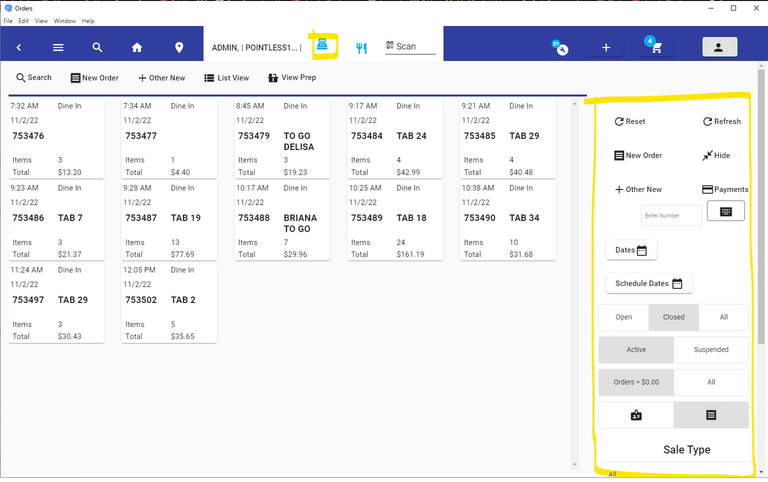
Order View With Filter
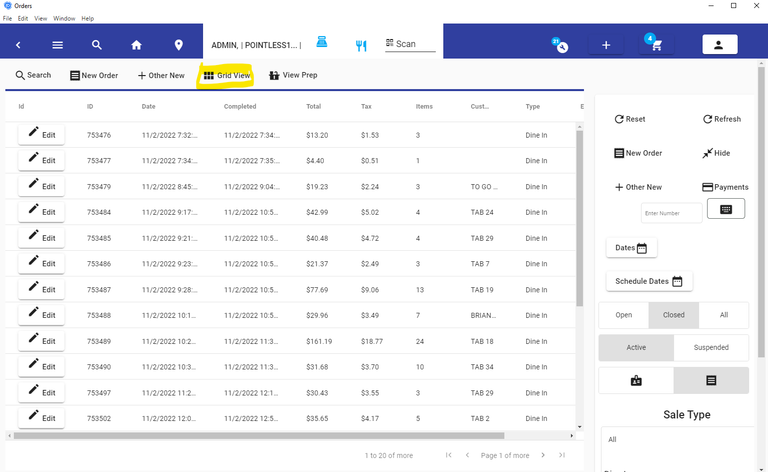
Orders with List View
You may use the filter on the right to review different orders that have different types, or statuses.
If you are a manager you can filter orders by date ranges.
All users can look up orders by their future scheduled dates.
You can use the Search button from the order screen to look up different orders. Then use the filters on the right.
Order Colors:
We also allow you to configure the colors of the orders. To do this, you set the color in the Transaction Types section of Settings. You can then view the orders as colorized for easier identification.
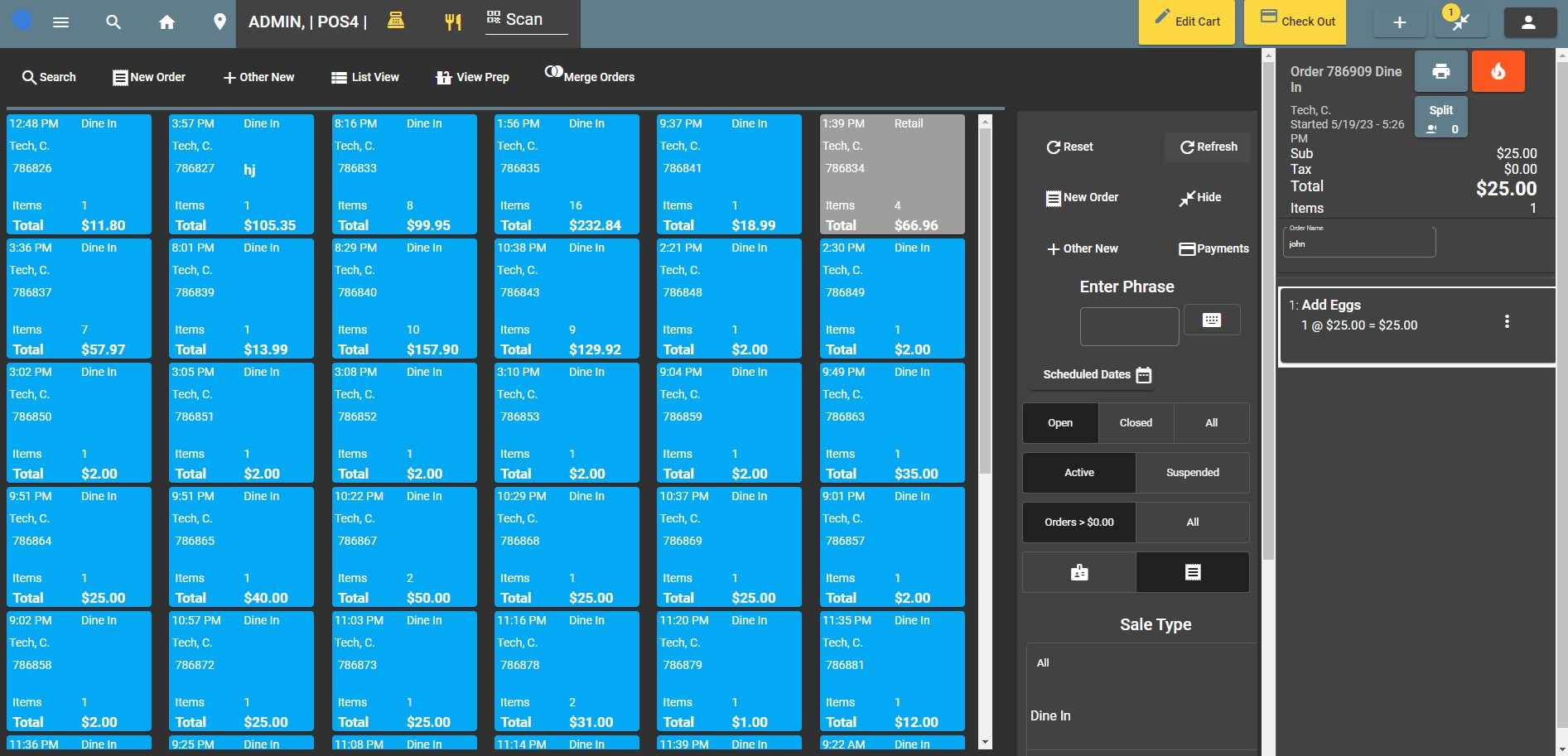
Table Management
If you are of a food service type business then you might see the table button next to the cash register button.
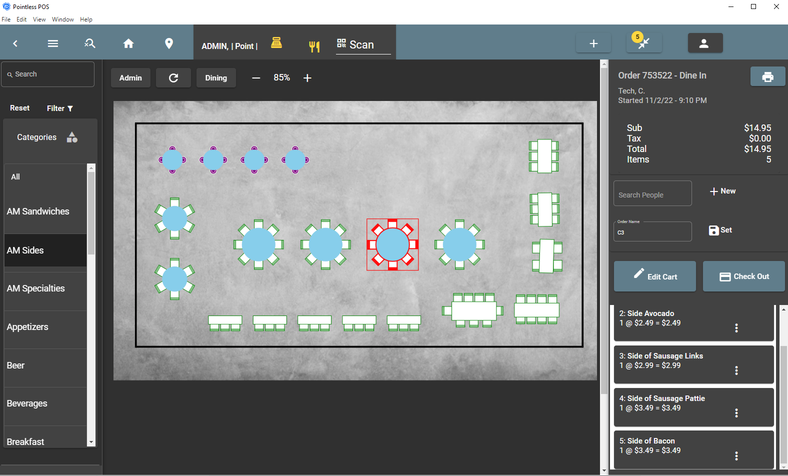
Table Orders
Express Orders (Pick up Orders)
Many customers order from a mobile device, or online. Ordering with intent to pick up. We often call these
express orders or pickup orders. If you have an order type that is one of these, you can use the filter to look up these orders for prep, and for when the customer shows up to pick up their order.
Scheduled Orders
Scheduled orders can be made by customers from their mobile devices, or online. Or they may be made at the store. Scheduled orders are for dates in the future.
You can use the scheduled dates button from the filter area to choose a date range to review.
Suspended Orders - House Accounts
Scenario: You have a customer who calls in to place and order that they will pick up tomorrow.
How to: You can suspend this order under 'Edit Cart' and then find the button 'Suspend Order'. To retrieve this order, you would use the filter in the Orders screen to review all suspended orders.
* You would need to enable the following authorizations
- Suspend Order
House account payments
A more sophisticated approach to consolidating orders for a customer.
To delay payment over more than one day, you would suspend an order using a payment method 'House Account'. These orders are associated with special 'House Account' customers and then grouped later to track multiple orders that are receivables for your business.
* You would need to enable the following authorizations
- Suspend Order
- House Account Payment.
** Make sure you log out and log back in after you change authorization features for them to apply to your account.
You also need a payment method for 'House Accounts' This triggers the system to suspend the order, and is only allowed on customers that are allowed for this type.
Compact Multiview Order Footer
On terminals configured for multiview, the compact order footer bar provides quick-access actions for the active order.
| Button | Action |
|---|---|
| Delete Last Item | Removes the last visible line item from the order. Available only while the order is open (not yet completed). Useful on compact screens where there is no room for per-item swipe-to-delete. |
| Restore Last Order | Brings back the most recently completed order as the active order. Available only when the current order has not yet been assigned an ID (i.e., it's a new, blank order). |
Guest Count and Party Pricing
When a menu has per-guest pricing configured (price arrays on categories), entering a guest count on the order automatically activates party pricing for that menu. The pricing updates in real time as items are added.
- Party pricing is auto-synced per menu — it only activates when the current menu supports per-guest pricing and the order has a guest count greater than zero.
- Navigating to a menu that doesn't support per-guest pricing automatically turns party pricing back off.
- When the guest count is entered, a label reminds the customer: "Entering the number of guests will update your pricing."
Order Line Item Actions
For each line item on an open order, staff users can perform the following actions:
| Button | Action |
|---|---|
| Quantity | Edit the quantity of the line item. Disabled once the item is printed or the order is closed. |
| Price | Adjust the item's unit price. Available only to staff. |
| Total Price | Adjust the line item's subtotal directly. Available only to staff. |
| Refund Item | Issue a refund for the line item. Disabled once the item is printed or the order is closed. |
| Remove | Remove the line item from the order. Disabled once the order is closed. |
| Void Item | Void the line item directly (no manager request needed). Available to management users, or staff with the Void Item authorization. Displays "Disabled - Order Closed" when the order is closed. |
| Void Request | Request manager approval to void the line item. Available to non-management staff. |
Action buttons on a line item are disabled when the order has been closed (completion date set), ensuring no modifications can occur on finalized orders.
For tobacco and nicotine products flagged with an mKonnekt manufacturer, an Apply mKonnekt button also appears on the order screen to apply manufacturer-funded discounts. See mKonnekt Tobacco Discounts for details.
Web Orders Filter
Staff users can toggle the display of web orders using the Web Orders button in the orders toolbar. When activated, only online (web) orders are shown in the order list. The button highlights to indicate the filter is active.
When the Web Orders filter is active, the order list switches to multi-select mode, adding a checkbox column to each order row. You can then select multiple orders and delete them in bulk.
Bulk Delete Selected Orders
When one or more web orders are selected, a Delete (N) button appears in the toolbar showing the number of selected orders. Clicking it confirms the deletion and removes all selected orders. This feature is only available on desktop terminals and only when the Web Orders filter is active.
Viewed / Un Viewed Filter
When the Web Orders filter is active, the order filter panel shows All, Un Viewed, and Viewed buttons. Use these to further narrow which web orders are displayed. The Un Viewed button shows orders that have not yet been looked at, while Viewed shows orders that have already been reviewed.
Kitchen Prep
You can check out our prep video here.
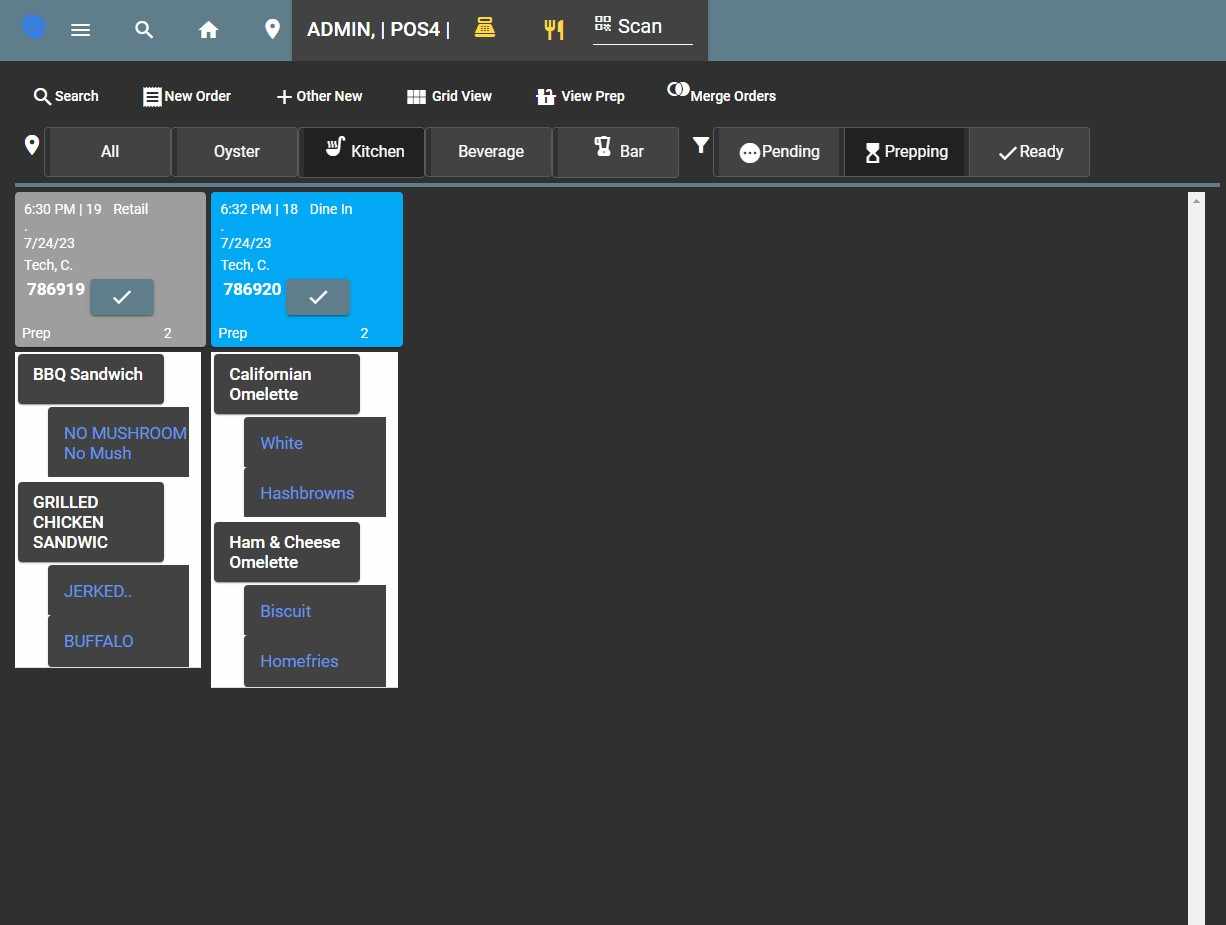
Prep Kitchen Colorized