Guest Tip Presets
Guest Tip Presets control the tip percentage options shown to customers during QR and wallet payments (Apple Pay, Google Wallet).
The setting is configured in Transaction Settings via the Guest Tip Presets (% of total, e.g. 15,18,20) field.
How It Works
Each numeric value in the list becomes a tip percentage button on the payment screen. A non-numeric phrase at the end of the list becomes the label for the custom tip entry button.
For example, entering 15, 18, 20, 25, and Additional Tip creates:
- Four preset tip buttons: 15%, 18%, 20%, 25%
- One custom entry button labeled Additional Tip
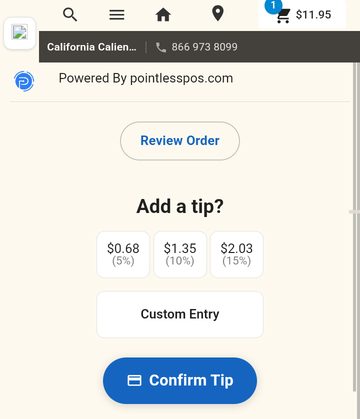
The custom entry button opens a keypad where customers can type a custom tip amount that doesn't match the preset percentages.
Custom Entry Labels
Any of the following phrases work as the custom entry trigger (case-insensitive):
- Additional Tip
- Custom Tip
- Custom Entry
- Custom Gratuity
- Add to Gratuity
- Enter Amount
- Enter Tip Amount
If no matching phrase is found, the default label Additional Tip is used.
Applies To
Guest Tip Presets affect tip selection for:
Configuration
- Navigate to Settings > Software & Hardware > Transaction Settings.
- Find the Guest Tip Presets (% of total, e.g. 15,18,20) field.
- Enter your desired percentages and custom entry label (e.g.,
15,18,20,25,Additional Tip). - Save the settings.
The tip buttons appear automatically on the next customer payment screen.