mKonnekt Tobacco Discounts
mKonnekt is a manufacturer-funded discount program for tobacco and nicotine products. When enabled, eligible items on a POS order can have automatic discounts applied from participating manufacturers such as Altria, RJ Reynolds, USSTC, Helix, and others.
Overview
The mKonnekt integration connects your POS to the mKonnekt discount engine. When a customer purchases qualifying tobacco or nicotine products, the system looks up applicable manufacturer discounts and applies them to the order — reducing the final price for the customer.
Discounts can include:
- Loyalty Fund Allowances — Customer loyalty discounts (requires a phone number on the customer profile).
- Multi-Can / Multi-Unit — Volume discounts when purchasing 2 or more units of an item.
- Total Buydown — Flat manufacturer-funded price reductions on eligible products.
Prerequisites
Before using mKonnekt discounts, make sure:
- When Applicable - A customer with a phone number is assigned to the order (loyalty discounts require a phone number).
- Create Item Types used specifically for Mkonnekt. The tobacco/nicotine item types are configured with the correct manufacturer flag (Altria or RJReynolds).
- Eable the MKonnekt API in Settings - Transaction Settings - API Connections.
Admin Setup
Step 1: Enable mKonnekt in Transaction Settings
- Navigate to Settings → Software & Hardware Settings → Transaction Settings.
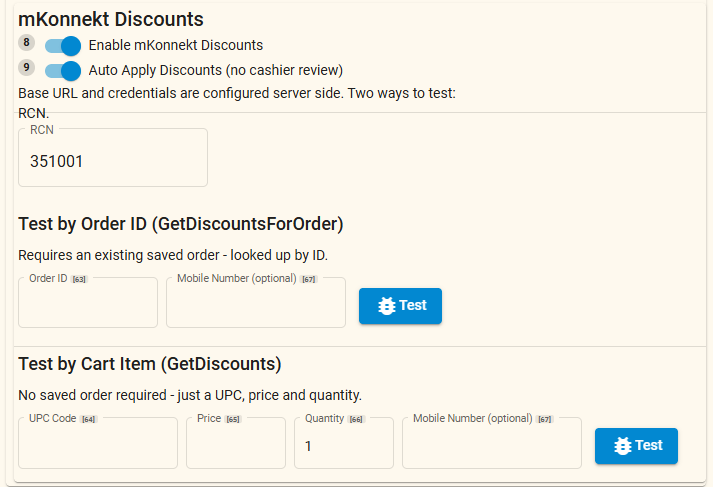
- Under the API Connections section, locate the mKonnekt Discounts Enabled toggle and turn it on.
- Save.
This makes the Apply mKonnekt button visible on the order screen. This button is not required to use, but does confirm the feature is enabled.
Auto Apply mKonnekt Discounts — There is also an "Auto Apply" toggle available. This is the recommended setting to enable.
RCN — The mKonnekt section of Transaction Settings also includes an RCN (Responsible Corporate Number) field. Enter the RCN assigned to your mKonnekt account, if you have one.
Step 2: Flag Item Types for mKonnekt
- Navigate to the Item Types section (accessible from the three-dot menu).
- Add MKonnekt Item Types for each manufacturer.
- Below the Toggles section, find the mKonnekt dropdown.
- Select the appropriate manufacturer:
- Altria — For Altria-branded products (Marlboro, Copenhagen, On!, etc.).
- RJReynolds — For RJ Reynolds-branded products.
- Clear — Disables mKonnekt for this item type.
- Save the item type.
Items flagged with Altria or RJReynolds will be recognized by the discount engine when scanned or added to an order.
Applying Discounts at the Register
Step 1: Build the Order
- Start a new order and assign a customer (with a phone number on file for loyalty discounts).
- Scan or add tobacco/nicotine items that have been flagged with an mKonnekt manufacturer.
Step 2: Apply mKonnekt Discounts
- On the order screen, locate the Apply mKonnekt button.
- The button only appears when mKonnekt Discounts Enabled is turned on.
- The button is only clickable when the order contains at least one flagged item.
- Click Apply mKonnekt. The system will:
- Query the mKonnekt discount engine for applicable discounts.
- Apply line-level discounts to matching items.
- Recalculate tax and order totals.
- A success notification confirms the discounts have been applied.
What Happens on Error
If the discount lookup fails — for example, due to a network issue, a closed order, or payments already made — a notification will appear with the error details and no changes will be made to the order.
Updating Discounts After Quantity Changes
If you change the quantity of a discounted line item after applying mKonnekt discounts, the discount amount may no longer be accurate. To refresh:
- Re-click the Apply mKonnekt button to re-apply the current discounts based on updated quantities.
Discount Types Explained
| Discount Type | When It Applies |
|---|---|
| Loyalty Fund Allowances | When the order's customer has a phone number on file. The discount is applied per line item. |
| Multi-Can / Multi-Unit | When the line item quantity is 2 or more. The discount scales with quantity. |
| Total Buydown | A flat manufacturer discount applied to eligible products regardless of quantity. |
Multiple discount types can apply to the same line item. For example, a single item might receive both a loyalty discount and a multi-unit discount.
Testing with Sample UPCs ( for developer use )
You can test mKonnekt discounts using these seeded UPCs from the mKonnekt test store. Ring up any of these as the item's scanned barcode on an item type flagged Altria or RJReynolds:
| UPC | Product | Discount Types | Item Type mKonnekt value | opCompanyCode |
|---|---|---|---|---|
073100030086 | On! Nicotine Pouch 4mg | Loyalty + Multi-Can | Altria (1) | 1070 USSTC |
07387614 | Copenhagen Long Cut Wintergreen | Loyalty + Multi-Can | Altria (1) | 1070 USSTC |
02847120 | Marlboro Menthol Gold 100s | Loyalty + Total Buydown | Altria (1) | 0004 PM-USA |
02856827 | Marlboro Special Select Red 100s | Loyalty + Total Buydown | Altria (1) | 0004 PM-USA |
028200304513 | Basic Menthol Gold 100s | Total Buydown | Altria (1) | 0004 PM-USA |
028200304025 | Basic Full Flavor 100s | Total Buydown | Altria (1) | 0004 PM-USA |
855022005331 | On! 8mg Coffee | Loyalty | Altria (1) | 1077 Helix |
855022005324 | On! 8mg Citrus | Loyalty | Altria (1) | 1077 Helix |
855022005249 | On! Nicotine Pouch 4mg 20ct | Loyalty | Altria (1) | 1077 Helix |
Testing tips:
- Ensure the customer has a phone number on file to see loyalty discounts.
- Set the item quantity to 2 or more to trigger multi-unit discounts.
- The test store is seeded with Altria data — RJReynolds-branded UPCs may not return discounts against it.
Troubleshooting
| Issue | Solution |
|---|---|
| Apply mKonnekt button doesn't appear | Verify mKonnekt Discounts Enabled is on in Transaction Settings. |
| Button is grayed out | Ensure the order contains at least one item flagged with Altria or RJReynolds in the Item Type settings. |
| No discounts returned | Verify the item has a valid UPC (scanned barcode). Check that the customer has a phone number for loyalty discounts. |
| Discount lookup fails | Check network connectivity to the mKonnekt service. If the order has payments or is closed, discounts cannot be applied. |
Related Links
- mKonnekt API Overview — Technical overview of the mKonnekt integration.
- Transaction Settings — Settings reference.
- Product & Item Catalog — Item type configuration.