Transfer Order
Overview
Transfer Order lets a server or staff member reassign their active order to another server or staff member who is currently on shift. The order — including all line items, pricing, and any payments — moves to the recipient's balance sheet.
Common use cases:
- Server relief or shift change — passing table orders to an incoming server
- Consolidating orders — moving orders to a single staff member for easier management
- Correcting mis-assigned orders — fixing orders that were opened under the wrong server
Prerequisites
- Authorization — The user's User Type must have Transfer Order enabled. See User Types → Order Auths.
- Target server on shift — The recipient must be clocked in with an open balance sheet. Only staff with open balance sheets appear in the transfer list.
How to Transfer an Order
- Open the Orders screen by clicking the blue Register button in the top toolbar.
- Select the order you want to transfer.
- Click the Transfer button in the toolbar.
- A panel appears listing all available servers and staff currently on shift.
- Click the name of the server you want to transfer the order to.
- The order is reassigned and the panel closes automatically.
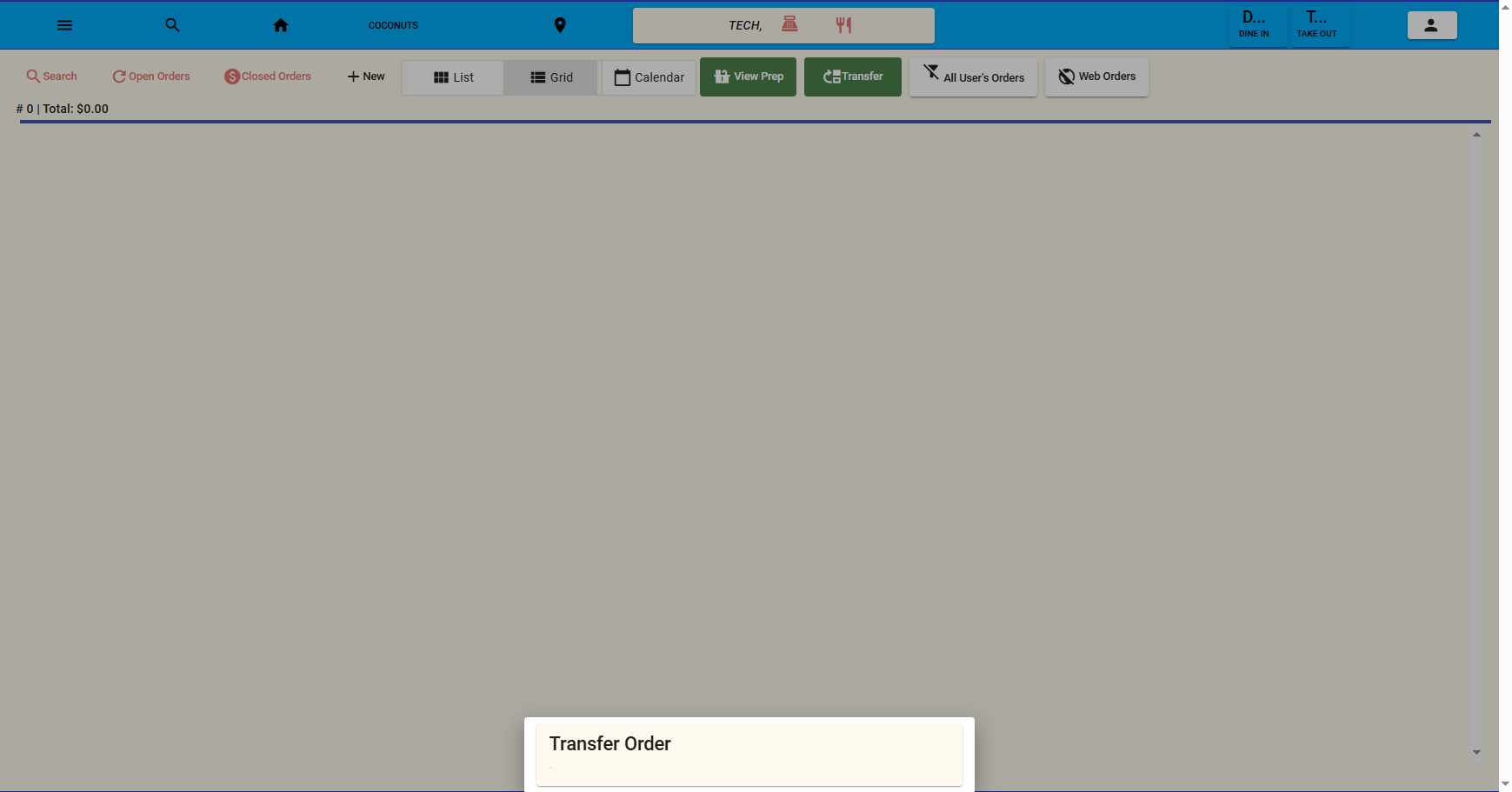
Transfer Order Dialog
Important Notes
- The order is transferred immediately upon selecting a name — there is no additional confirmation step.
- If no other staff members have open balance sheets, the Transfer button will show an empty list.
- The original server loses ownership of the order; the recipient's balance sheet reflects the transfer.
- The Transfer Order authorization is set per User Type in Settings → Authorizations & Access → User Types. After enabling, users must log out and log back in for the change to take effect.