Inventory
Inventory & Manifests
Overview
In this section we cover importing inventory, setting up inventory locations, discuss adjusting inventory. We show how you can limit item sales to inventory only.
For the inventory, cannabispos.firebaseapp.com has the most extensive content. For this section, this playground will work for any business type, from retail to food service. It also applies to businesses that use scales like grocery, there are many menu items set up that are attached to the inventory.
If you haven’t used the Pointless POS menu before, or any inventory system before we’ll cover some basics now. It’s a quick read so even if you have used a menu or product catalog with a point of sale before, but not used inventory, it should be helpful.
Basics
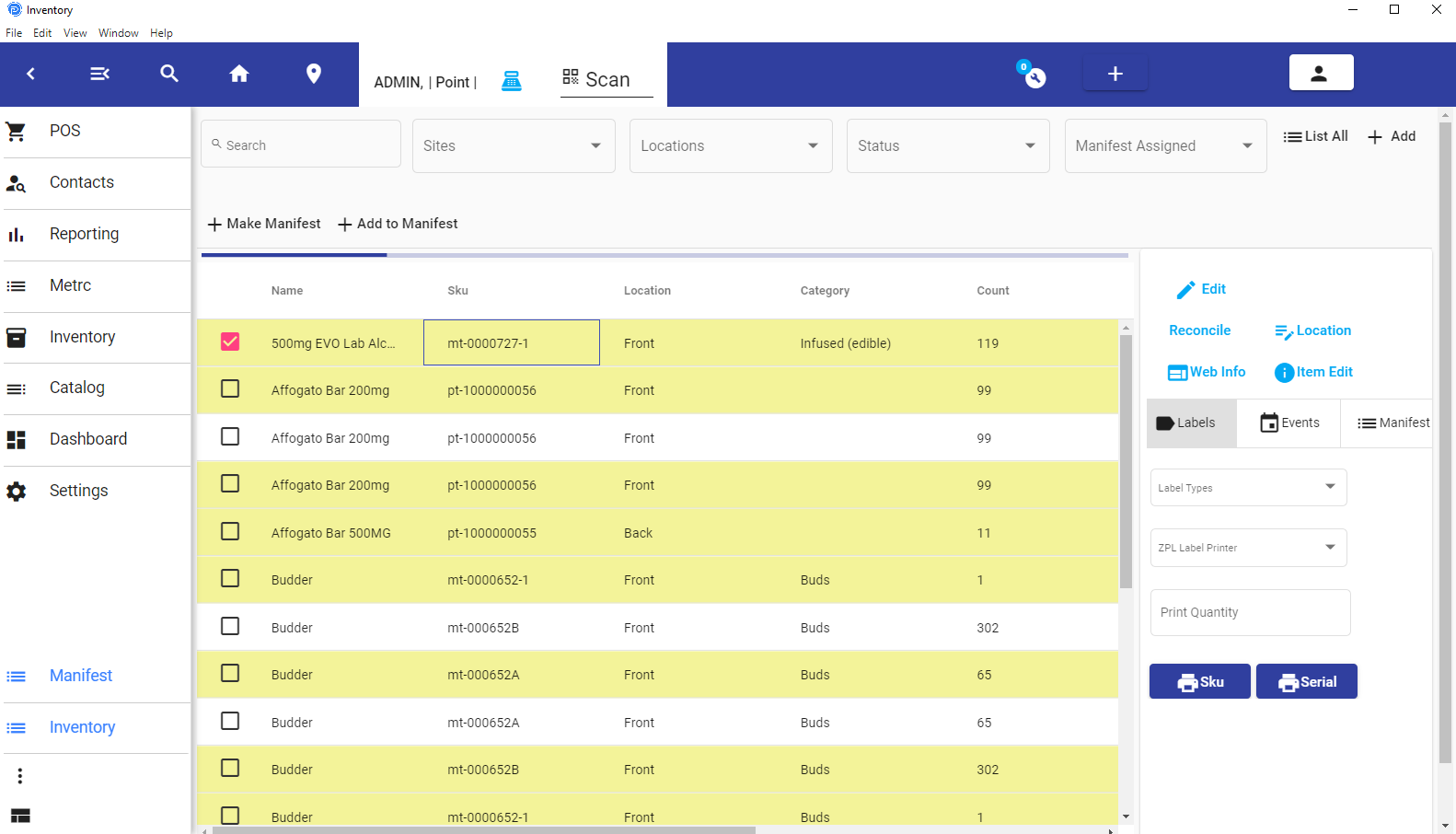
Here is a quick description of why we say Inventory and Catalog. We consider the catalog, to be similar to a menu. The menu of a restaurant doesn’t consider how many hamburgers you have. The catalog is just a list of products that your customer would purchase. The inventory is the batches of products you have received or processed from other inventory, that you intend to sell or provide to customers via the catalog. When your customer buys a product, they see the menu, but they buy from the inventory. It’s a seamless process that they won’t know about, and your cashier's staff won’t concern themself during the sale, but it’s important to your business how you keep track of your product.
The items that you sell from inventory should not be sold as regular catalog items. We’ll take a moment to describe the difference. If you have a can of coke, it has a barcode. That barcode represents the item barcode. It doesn’t represent a code that tells you how many can’s of coke you have in stock.
So in order to keep track of each batch of coke, you would receive the inventory of coke, and then label it with a new barcode. Now, it might not be important to keep track of coke this way, but for expensive, and date-sensitive items or items that vary from batch to batch, keeping track of each group of products you receive can be important.
Adding Inventory
To add inventory item by item:
Press the add Button (highlighted)
Enter the details, and press Add. The item will be the one shown on the list. You can edit or perform the remaining functions for this item.
Edit Inventory

Print Labels
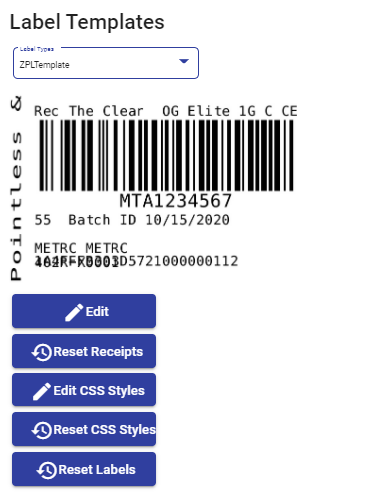
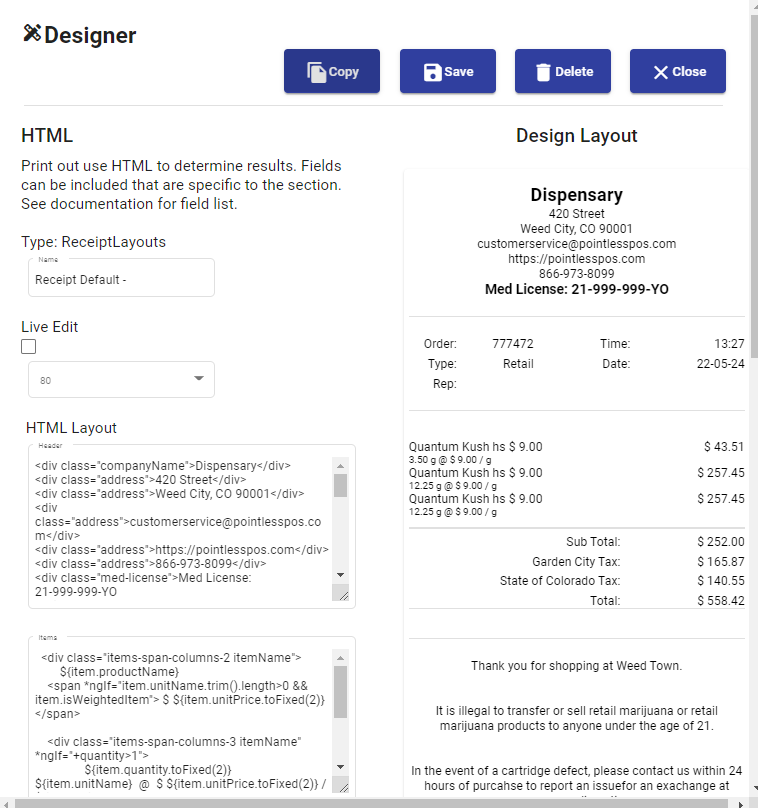
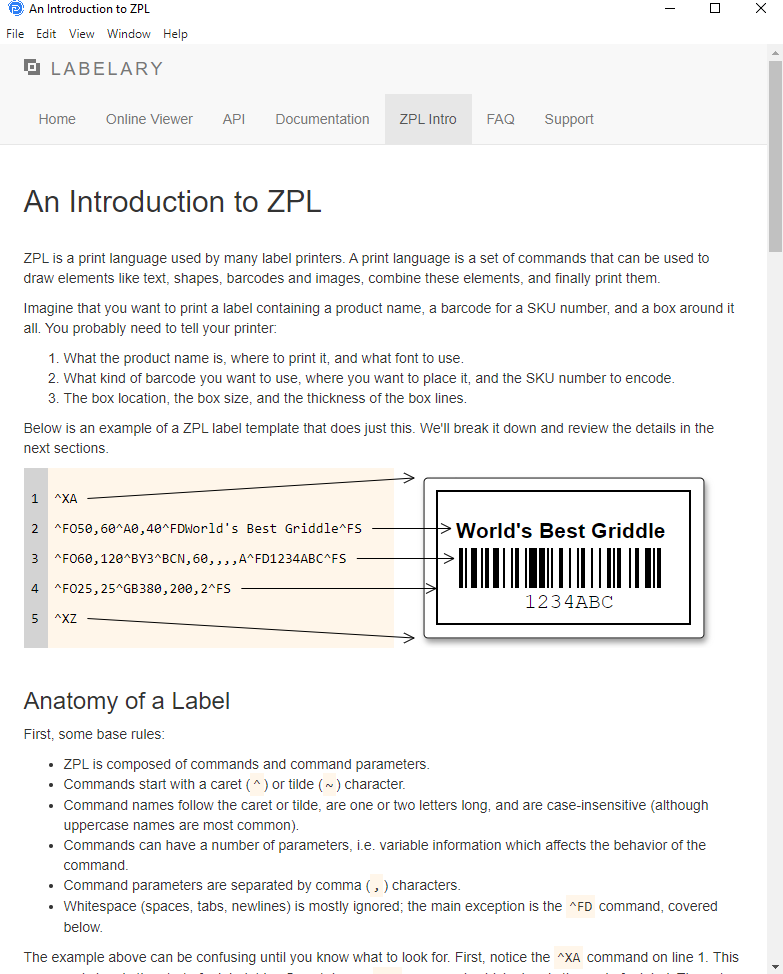
Labels can be printed on ZPL printers. The setup of the format of the printers is located in the Print Setting section under settings. You will want to refer to the ZPL guide on how to format labels.
Modify after Transactions
After the product is added to the inventory and sold, it can continue to be modified and tracked from the inventory screen. After selecting the item, from the right you can update the count, location, and reference product.
Change inventory Location
Locations of the inventory can be modified by selecting the row, then pressing the locations button (highlighted). If you enter in partial amounts of inventory, this will split the inventory into two different lines, both lines will retain the original barcode.
Locations
Locations are managed from the lower menu on the left. It may be minimized, so you may need to use three dots.
Locations control if you can sell the item, or if you perhaps want to mark items, not for sale, and perhaps damaged or unsellable.
Inventory Events (Audit History)
The changes to inventory items are tracked in the events section. This section is not editable but keeps track fo any changes to the database records of the inventory itself.
Video Intro to Inventory
Intro to Inventory
Warehouse Inventory & Manifests
Manifests allow you to perform more collective inventory imports. Like an invoice. They also allow you to transfer your inventory from one store to another.
The additional real power here is, that you can transfer both the inventory and product catalog using the manifest. Each item in the inventory carries with it details of your product catalog.