Managing Orders
Transaction Types, Prep Screens, Order Actions and Filters
Overview
Orders are shorthand for the many ways Pointless uses to sell products but also convert deplete, or adjust inventory through transactions.
Different kinds of businesses use different types of orders. So the orders you see below might not represent the orders in your system, but the essence will have many of the same features.
Examples of orders would be: Take Out, Retail, Medical Sale, Donation, Conversion, Buy Back, and Refund.
To get to the orders, you would in the screen below the Blue Register Button in the center of the top toolbar.
The order management screen has a variety of options. You are free to review them at your leisure. You can view orders as cards, or as a list.
Transaction Settings
Navigate to Settings - Software and Hardware Settings - Transaction Types
<table class="docsie-table docsie-table-bordered "><colgroup><col style="width: auto;"><col style="width: auto;"></colgroup><tbody><tr><td class="left" id="cell-a20mi">Taxable</td><td class="left" id="cell-efrfe">To enable tax for this type of transaction.</td></tr><tr><td class="left" id="cell-dajfe">Show Order Type</td><td class="left" id="cell-1e3h">Not all transactions should be shown on the POS. Enabling shows on the POS.</td></tr><tr><td class="left" id="cell-9nf2m">Retail Type</td><td class="left" id="cell-2qe9">Will auto navigate to large cart view.</td></tr><tr><td class="left" id="cell-1bbt6">Sale Type</td><td class="left" id="cell-1u9ro">This should be marked for all transactions used in sales.</td></tr><tr><td class="left" id="cell-2n16e">Online Order</td><td class="left" id="cell-fv931">This enables the order as an option for online users.</td></tr><tr><td class="left" id="cell-4j02u">API Order</td><td class="left" id="cell-8am95">This order type can be used by third party API's.</td></tr><tr><td class="left" id="cell-ceerg">Prompt Schedule Time</td><td class="left" id="cell-cgpoq">Requires user to set preferred schedule date for order to be fulfilled.</td></tr><tr><td class="left" id="cell-fo6h9">Delivery Service</td><td class="left" id="cell-98ifi">Requires user to put in the address for delivery.</td></tr><tr><td class="left" id="cell-82qoi">Min Order Value</td><td class="left" id="cell-2ulvk">Required to complete payment of the order.</td></tr><tr><td class="left" id="cell-3qosv">Default Item</td><td class="left" id="cell-5gtlo">Assigns a default item to the order</td></tr><tr><td class="left" id="cell-d66lt">Default Item 2</td><td class="left" id="cell-7g3tr">Assigns a default item to the order</td></tr></tbody></table>
Additional notes and settings are displayed below these options.
Order Screens Review & Filter Options
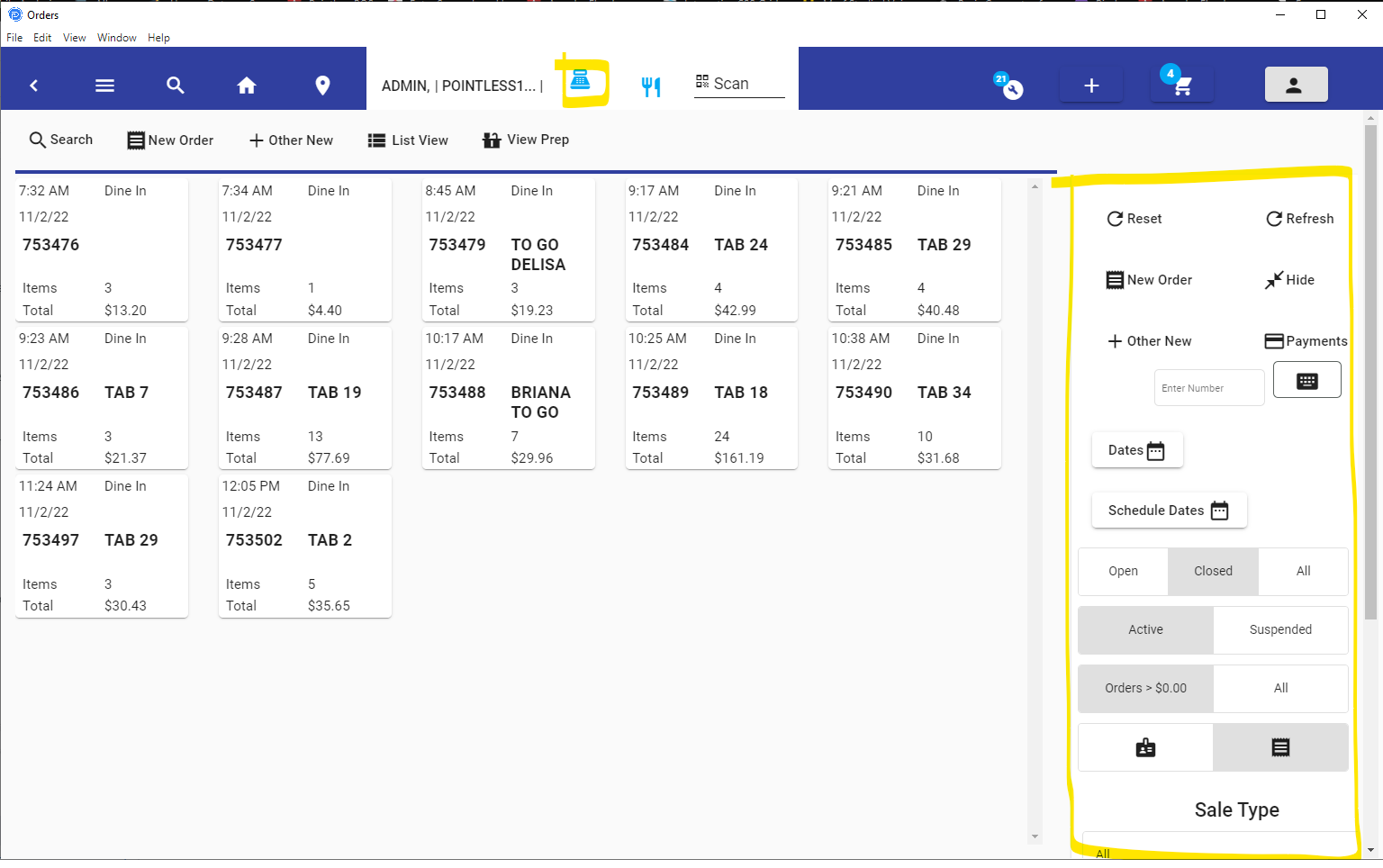
Order View With Filter
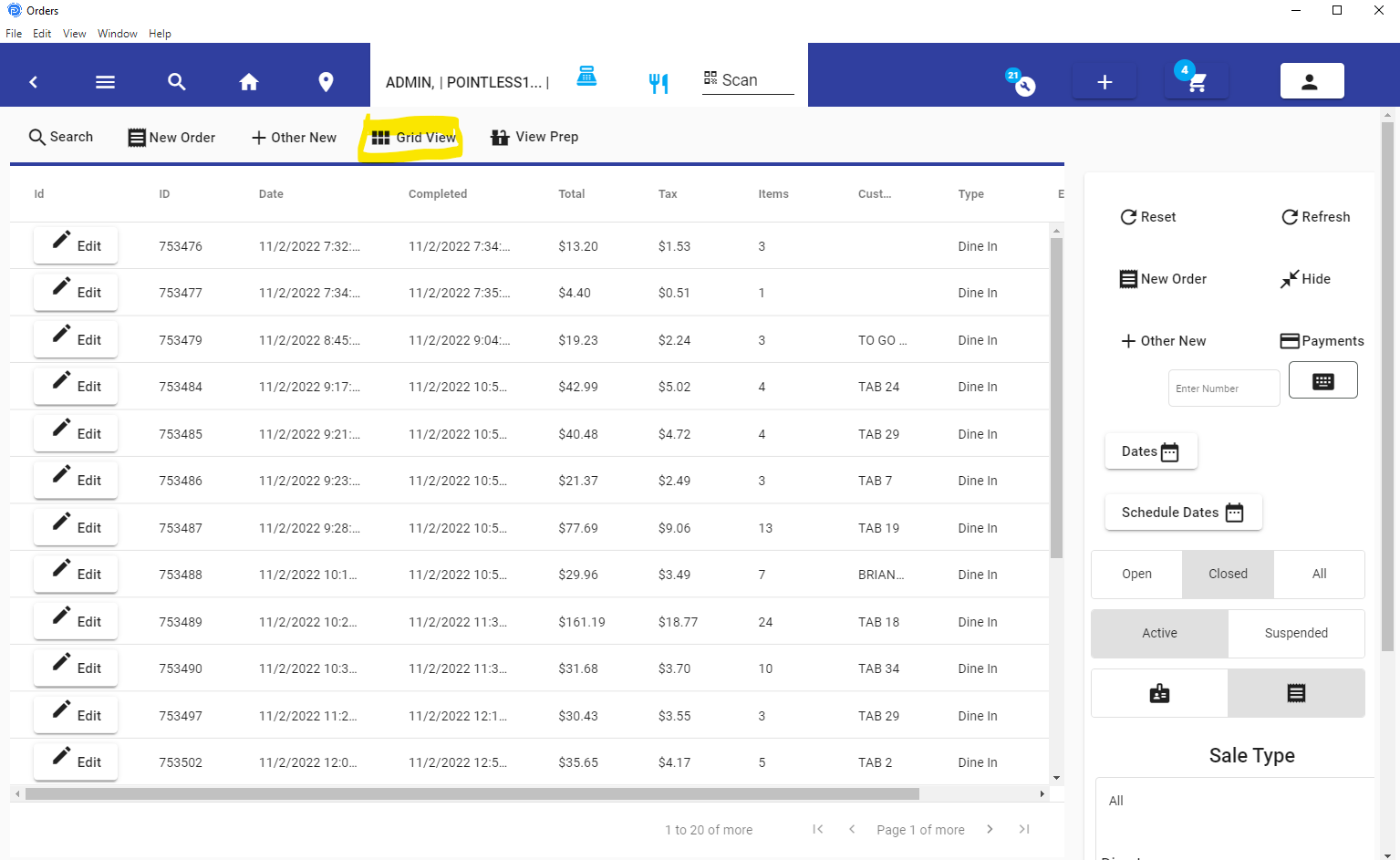
Orders with List View
You may use the filter on the right to review different orders that have different types, or statuses.
If you are a manager you can filter orders by date ranges.
All users can look up orders by their future scheduled dates.
You can use the Search button from the order screen to look up different orders. Then use the filters on the right.
Order Colors:
We also allow you to configure the colors of the orders. To do this, you set the color in the Transaction Types section of Settings. You can then view the orders as colorized for easier identification.
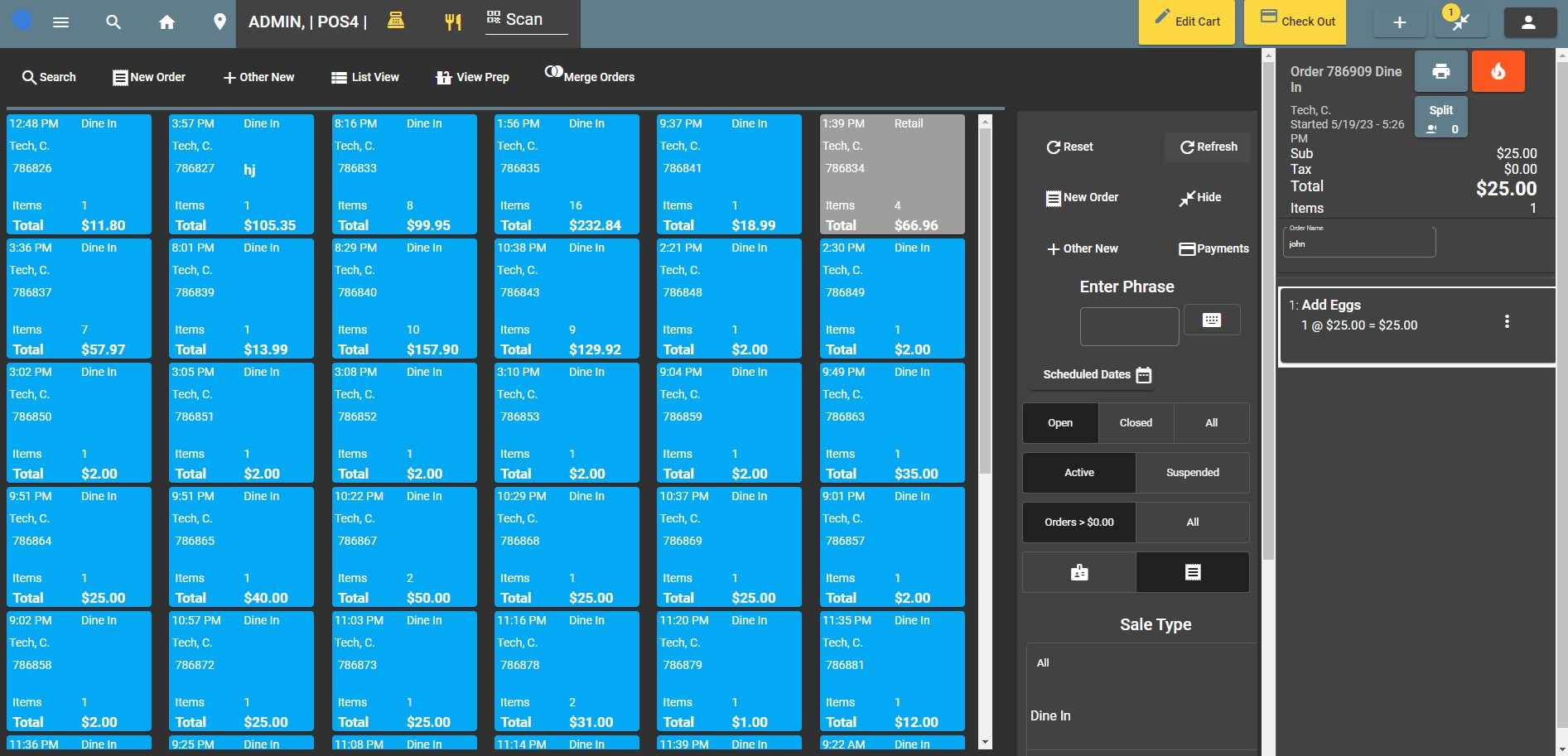
Table Management
If you are of a food service type business then you might see the table button next to the cash register button.
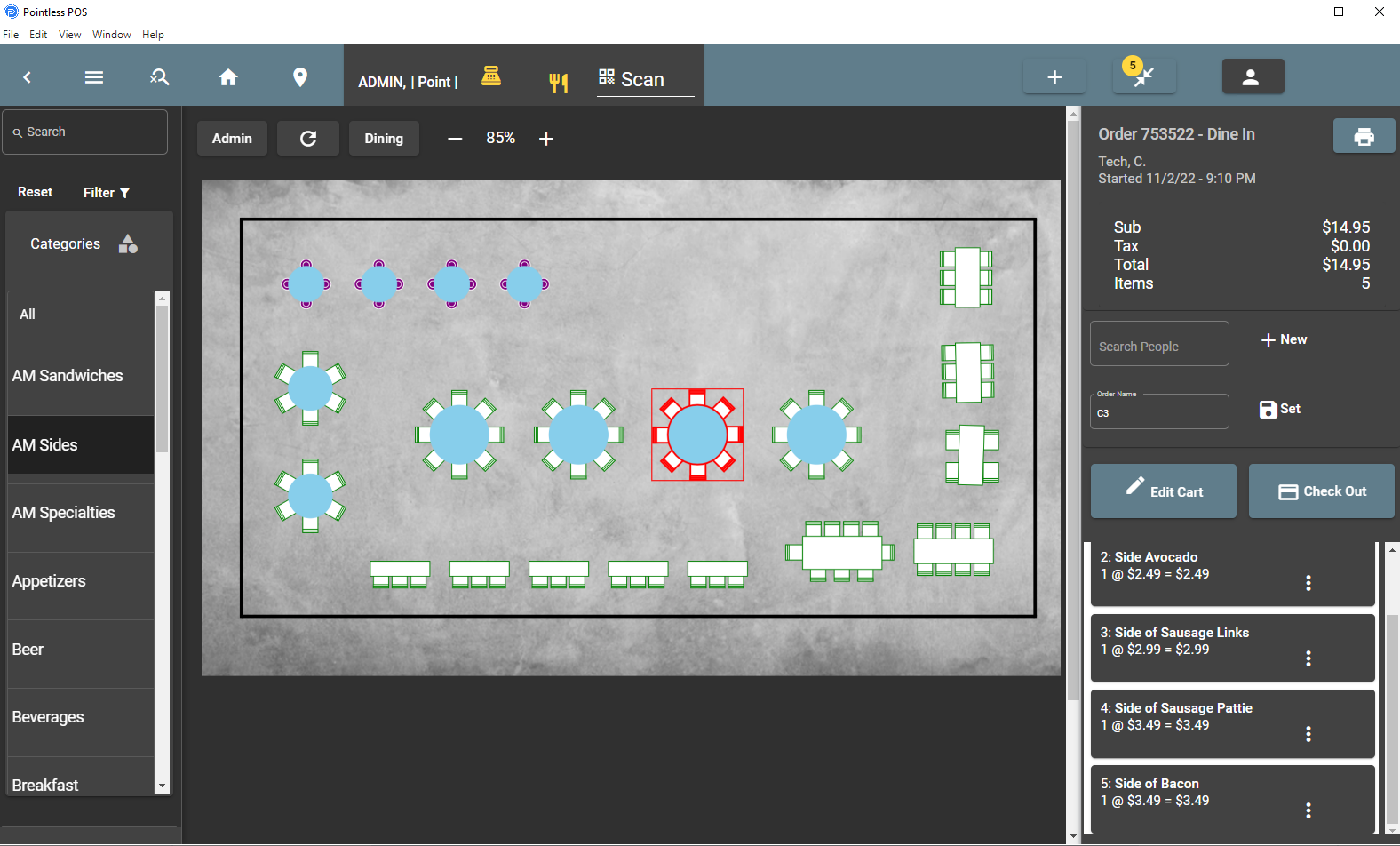
Table Orders
Express Orders (Pick up Orders)
Many customers order from a mobile device, or online. Ordering with intent to pick up. We often call these
express orders or pickup orders. If you have an order type that is one of these, you can use the filter to look up these orders for prep, and for when the customer shows up to pick up their order.
Scheduled Orders
Scheduled orders can be made by customers from their mobile devices, or online. Or they may be made at the store. Scheduled orders are for dates in the future.
You can use the scheduled dates button from the filter area to choose a date range to review.
Suspended Orders - House Accounts
Scenario: You have a customer who calls in to place and order that they will pick up tomorrow.
How to: You can suspend this order under 'Edit Cart' and then find the button 'Suspend Order'. To retrieve this order, you would use the filter in the Orders screen to review all suspended orders.
* You would need to enable the following authorizations
- Suspend Order
House account payments
A more sophisticated approach to consolidating orders for a customer.
To delay payment over more than one day, you would suspend an order using a payment method 'House Account'. These orders are associated with special 'House Account' customers and then grouped later to track multiple orders that are receivables for your business.
* You would need to enable the following authorizations
- Suspend Order
- House Account Payment.
** Make sure you log out and log back in after you change authorization features for them to apply to your account.
You also need a payment method for 'House Accounts' This triggers the system to suspend the order, and is only allowed on customers that are allowed for this type.
Kitchen Prep
You can check out our prep video here.
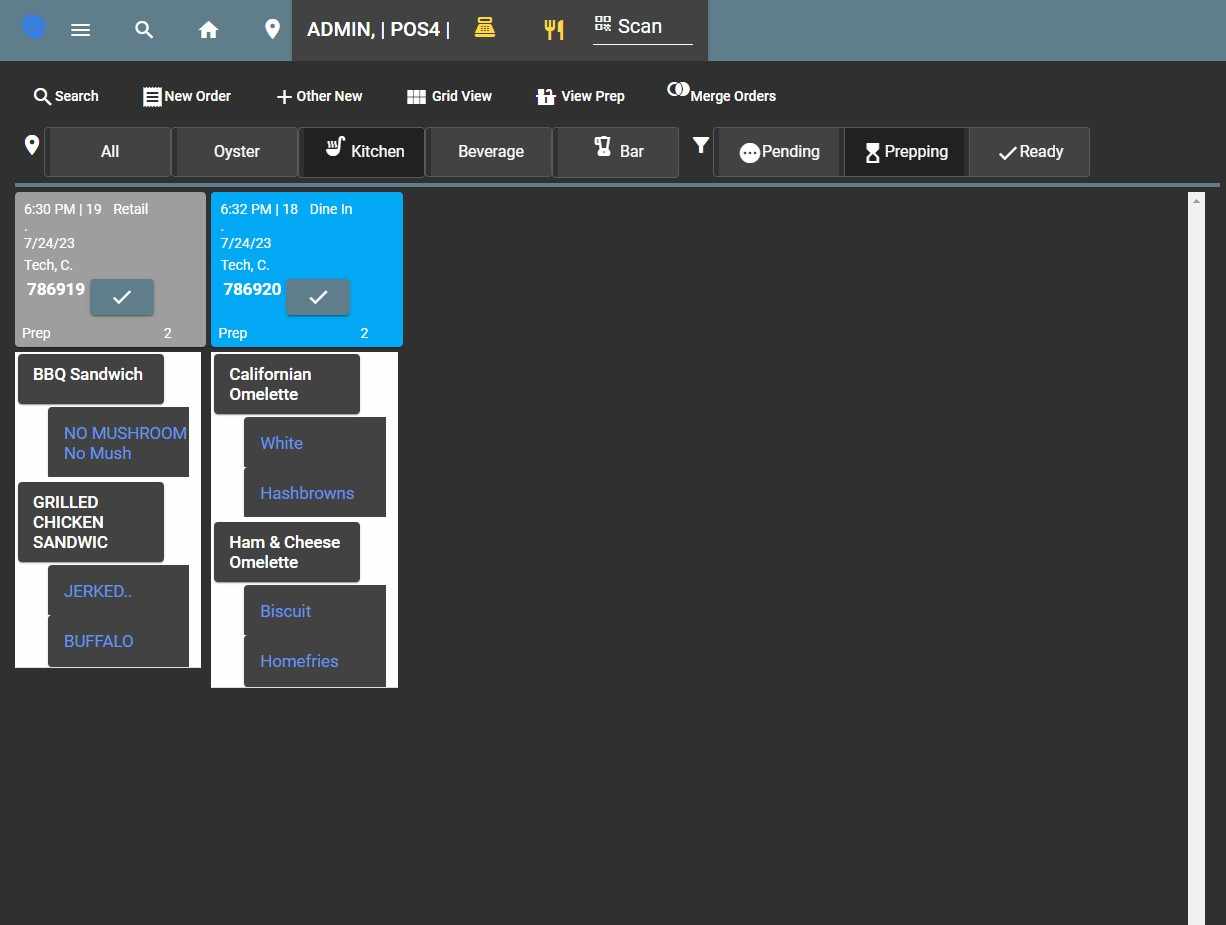
Prep Kitchen Colorized