Payments
Payments
Payments, Void Payments, Authorizations, Gift Cards, Store Credit, EBT, WIC, Rewards, Auto Grat / Service Fees
Overview
Using the checkout/pay button allows you to apply for payments. On the side panel it says Check Out; on the order screen it's labeled Pay.
The payment options largely depend on the setup that applies to your business. So you may not see all the features shown on the screens we discuss here.
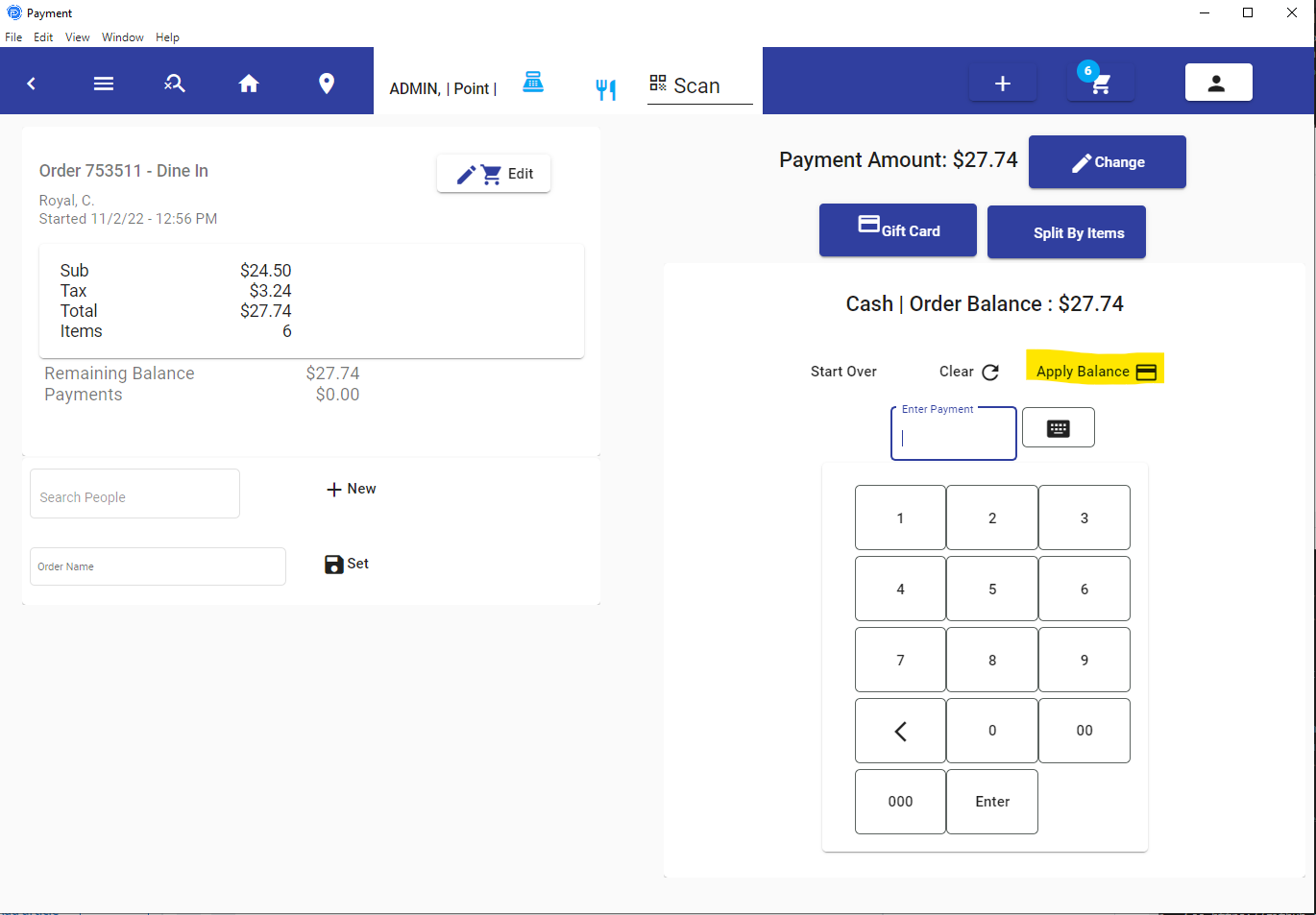
Applying Balance (exact change) & Partial Payments
You can easily apply partial payments by choosing the payment method, then entering the amount to apply.
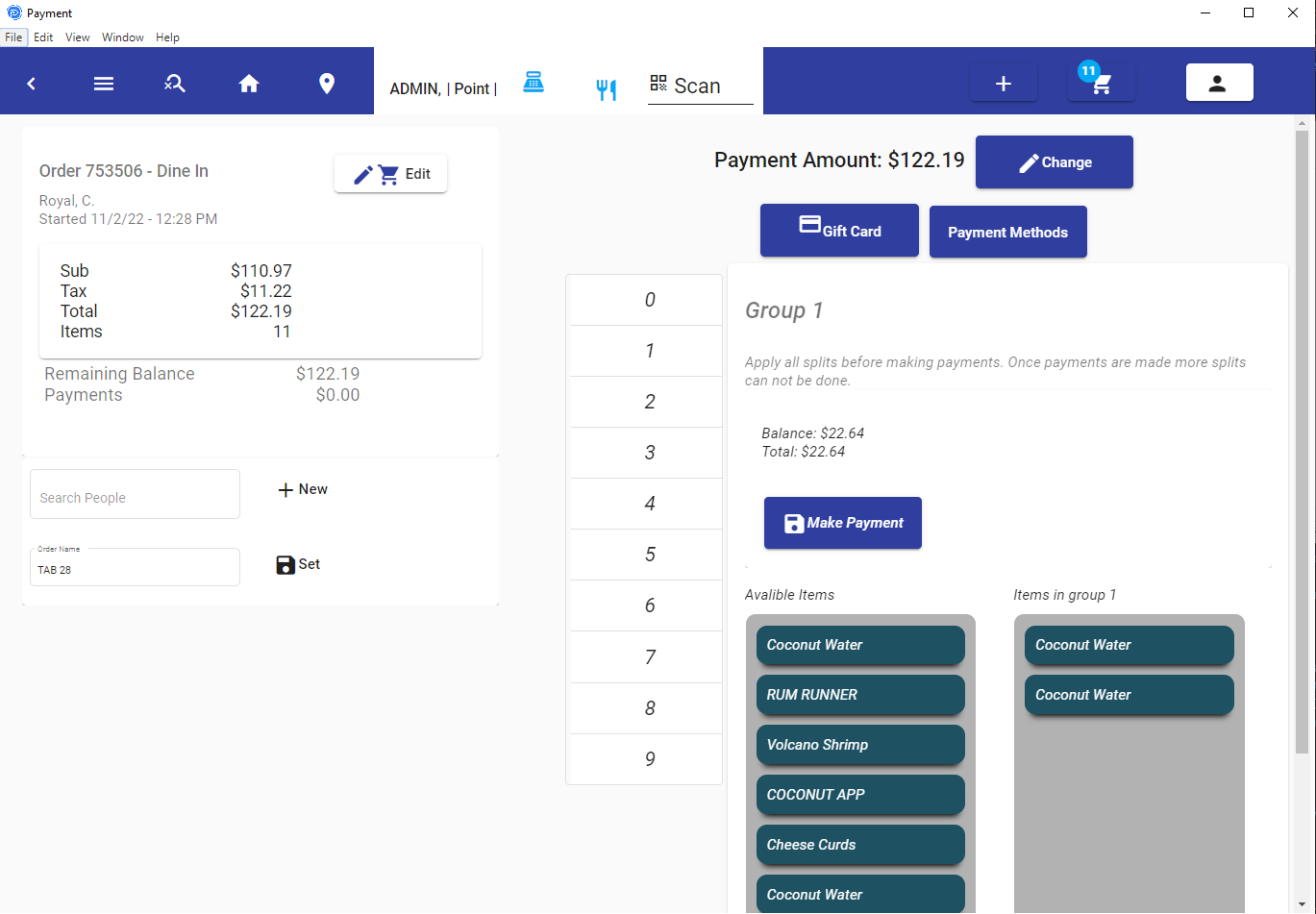
Split By Item
Split payments allow you to separate the order into different items.
CardPointe - Credit Card Auth & Continuous Adjustments
Continuous Adjustments of Credit Cards With CardPointe.
Stripe Payment
Stripe Payments
PayPal
PayPal Integration and Use.
Gift Cards / Store Credit
House Accounts
House Account
Applying Rewards Points - Store Credit
When a customer has rewards points, these can be applied as payments toward the order. You will see a button that shows they have credit.
The type of payment depends largely on the settings management has set up. It's going to likely be that you have cash and credit options. If you have a customer assigned and they have store credit, you will see the option to apply store credit.
Cash Discount & Surcharge
Auto Gratuity
Finalized Orders
Once payments are applied, the remaining balance is shown as zero and the receipt is shown. If you open a closed order, this is what you will see. This gives you an opportunity to reprint the receipt or void the payment. You cannot adjust closed orders prior to voiding their payment.
Orders can be voided in the following ways:
- Payments must be voided first.
- Items must each be voided prior to voiding the order.
- If all items are voided, the order will have no value — it doesn't need to be voided, but can be.
Auto Gratuity / Auto Service Fees
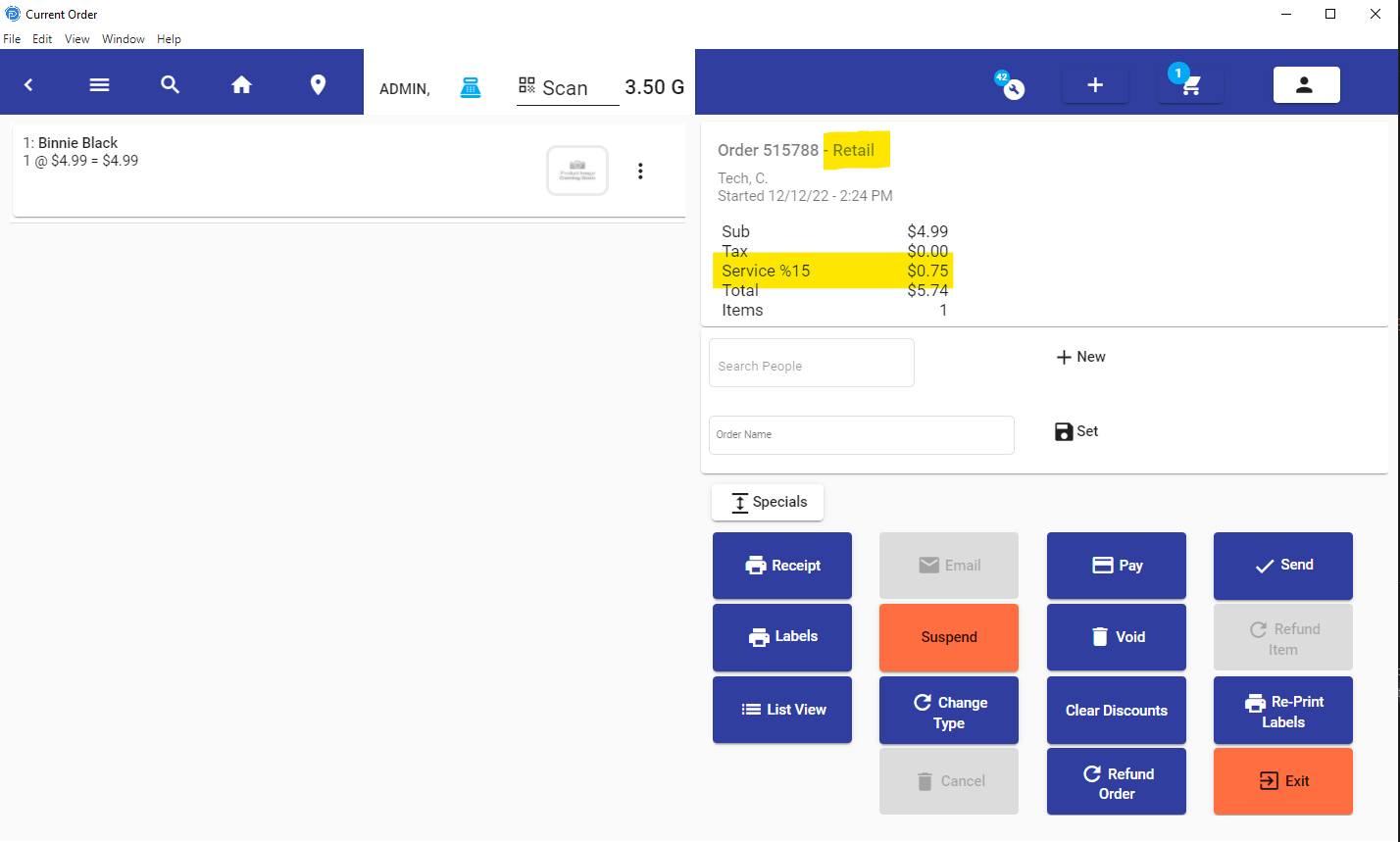
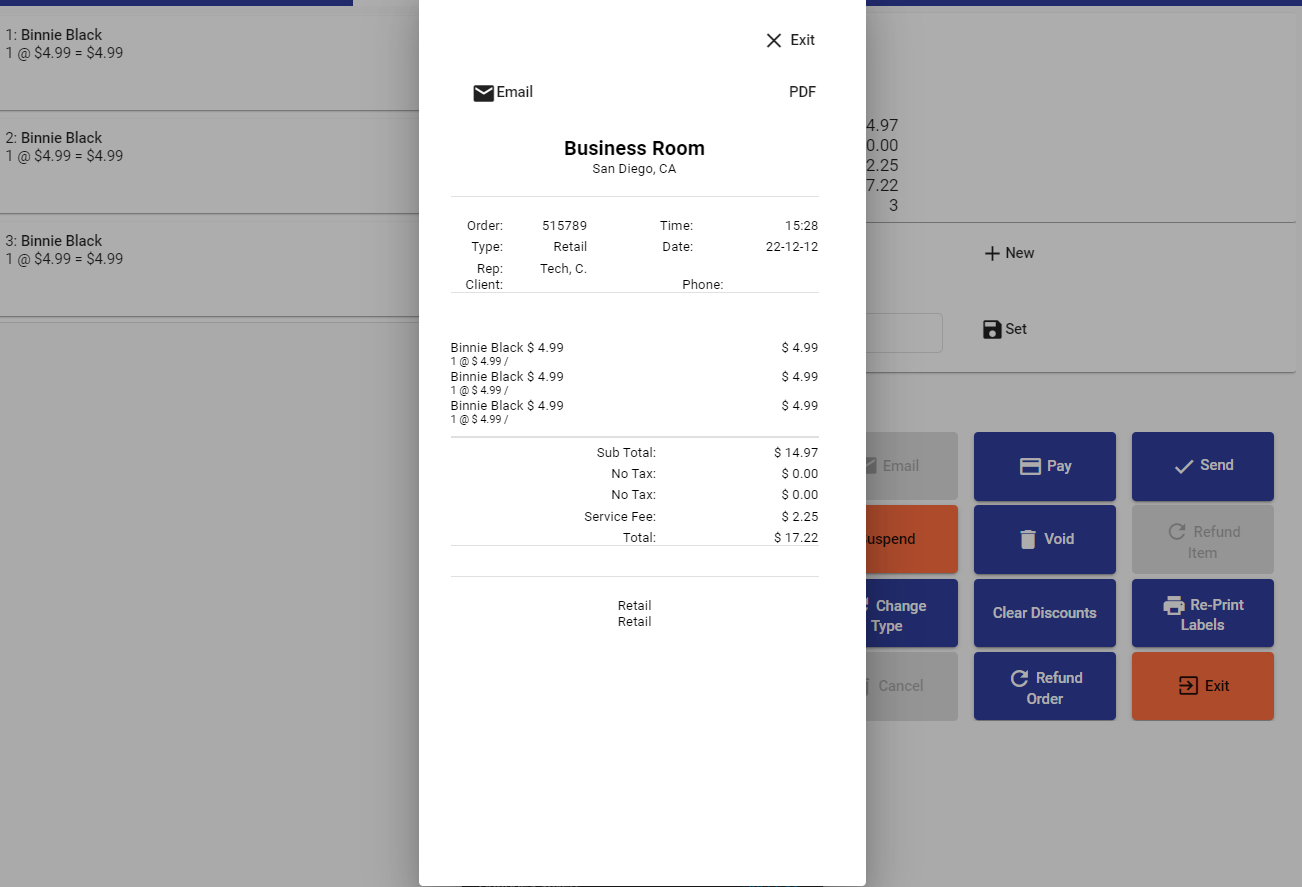
You can have service fees of a specific percentage apply automatically to orders. You can choose what order types get what value of the fee — for example, in-house transactions can have an automatic 18% fee, and deliveries can have a 15% fee.
Item Type Setup
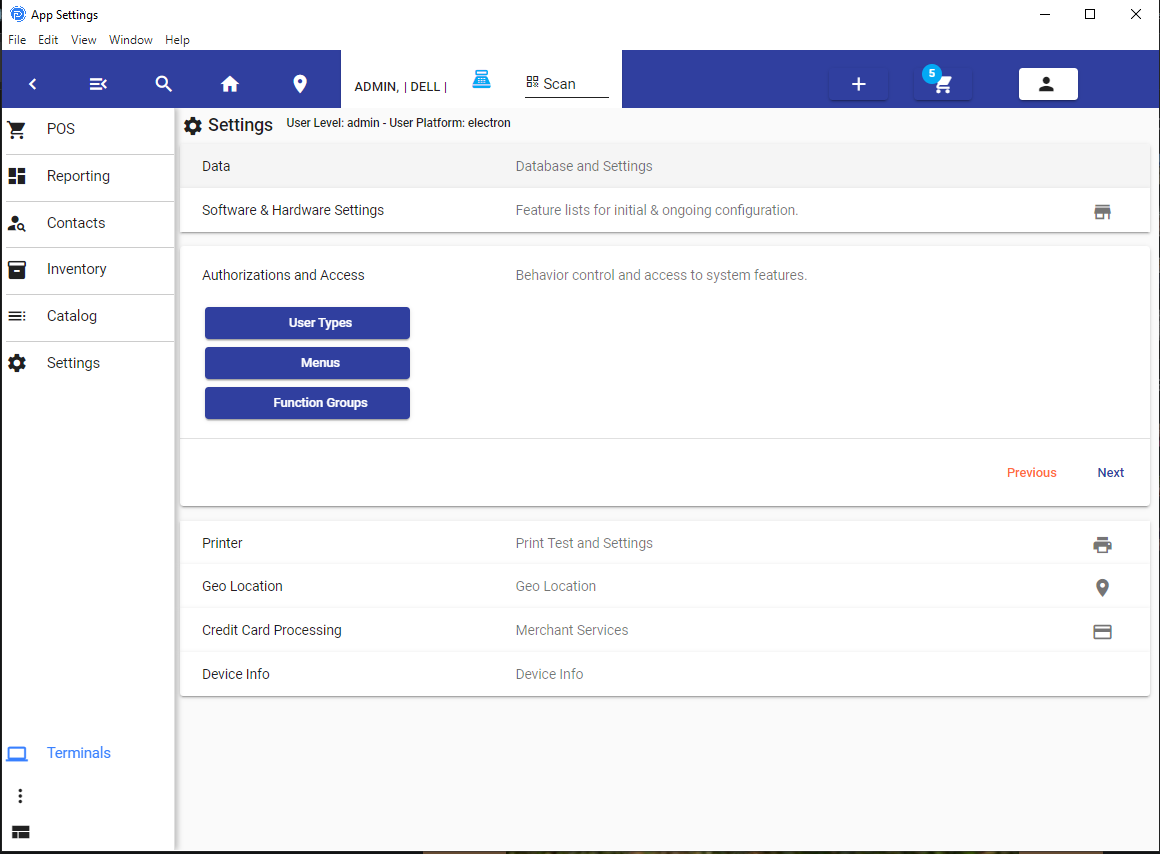
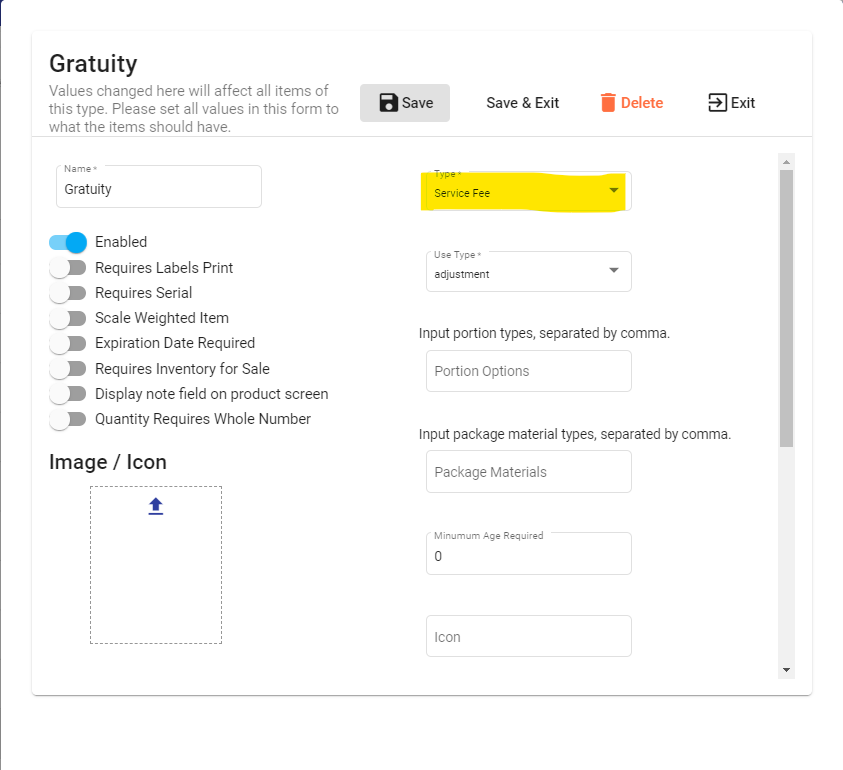
Go to Item Types, then find Gratuity. Ensure it is set up and enabled as shown.
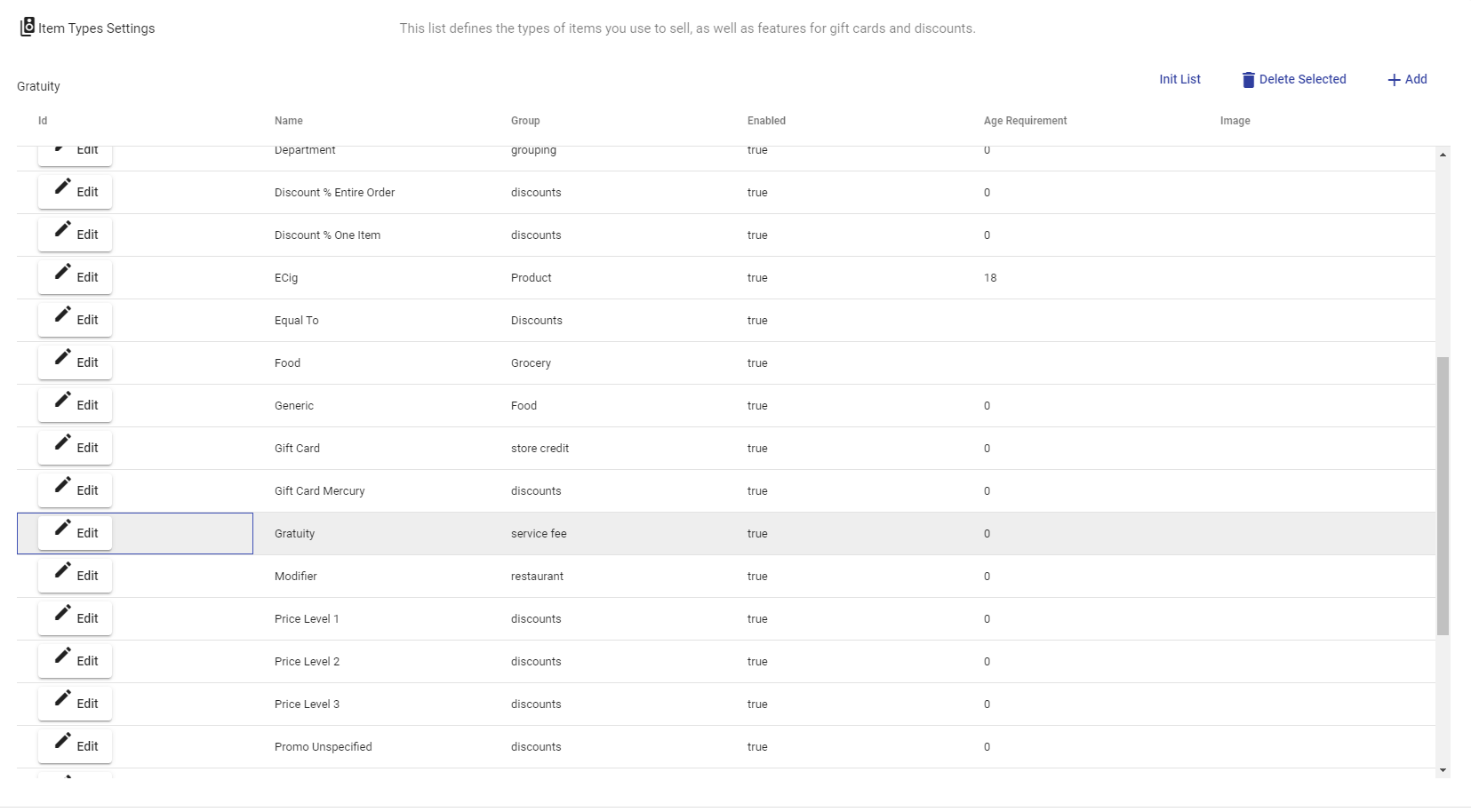
Double-check the settings of the Item type and then move on.
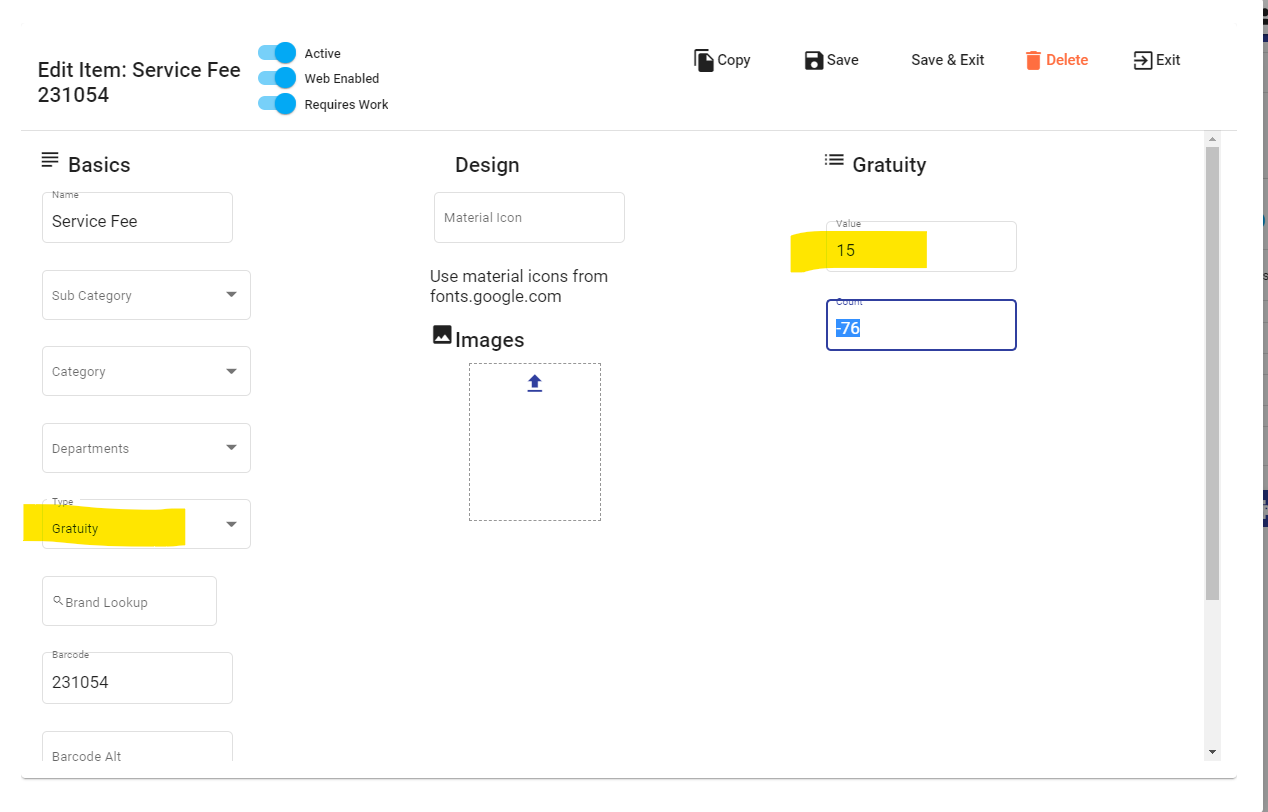
Next set up the item in the catalog which will hold the value of the fee. Review that the values match what you require and make sure the type is assigned as Gratuity.
Transaction Type Setup
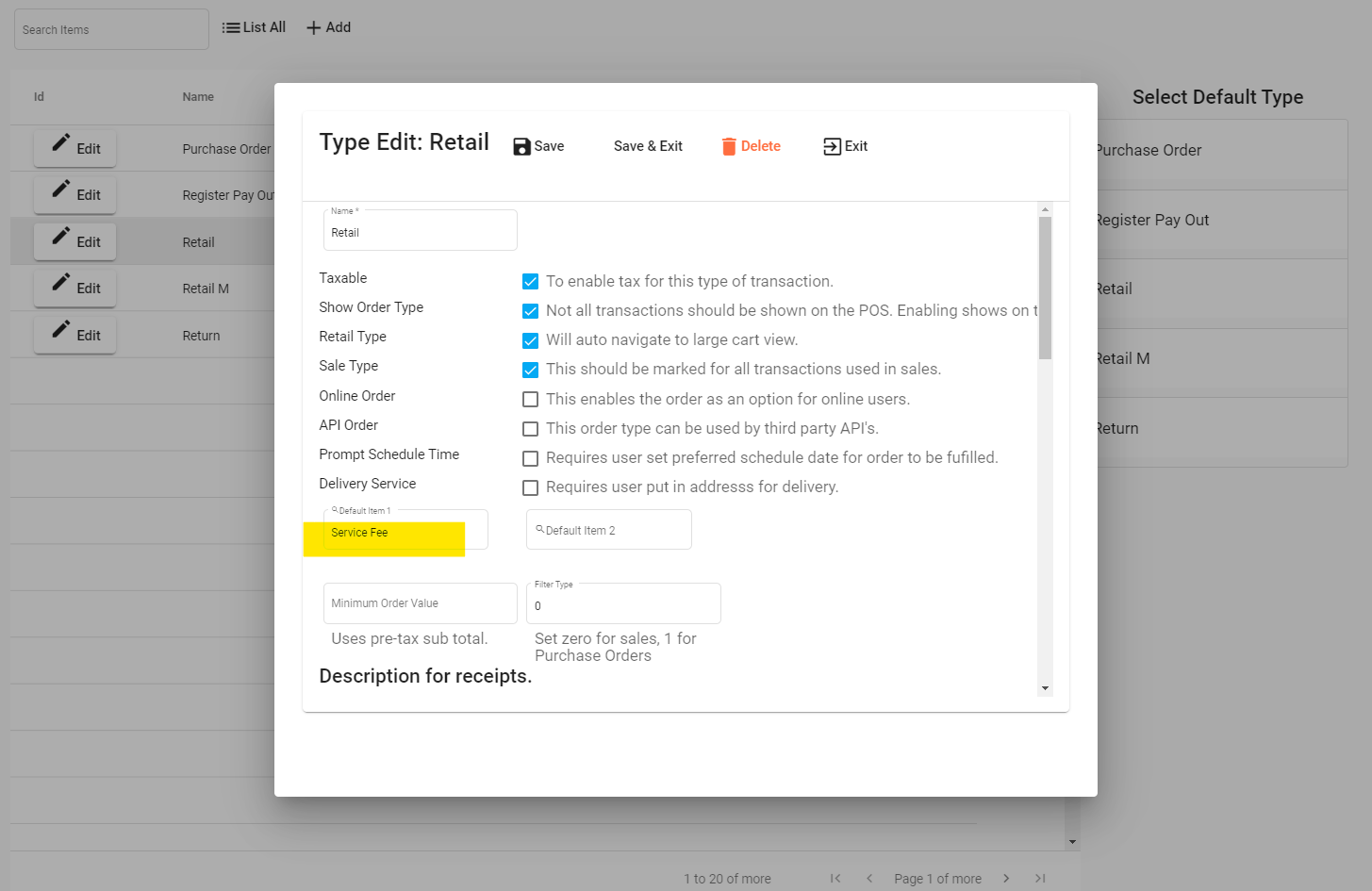
Go to Settings => System Settings => Software & Hardware Settings => Transaction Types. Edit the transaction types you need to have service fees. Under Default Item 1, type in the name of the new item you created and you will see it appear.
Order & Receipt View
Cash Discount (Customer pays fees for using credit card)
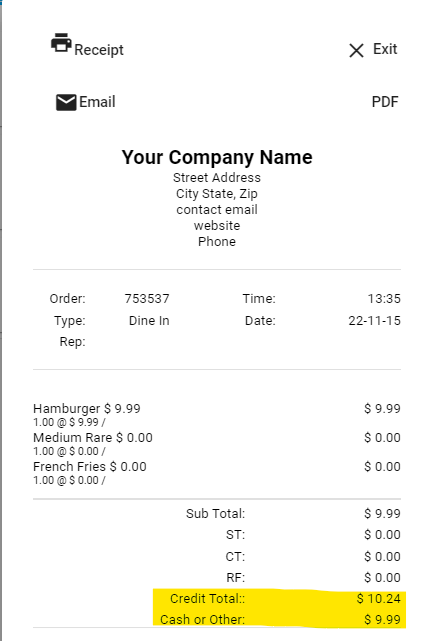
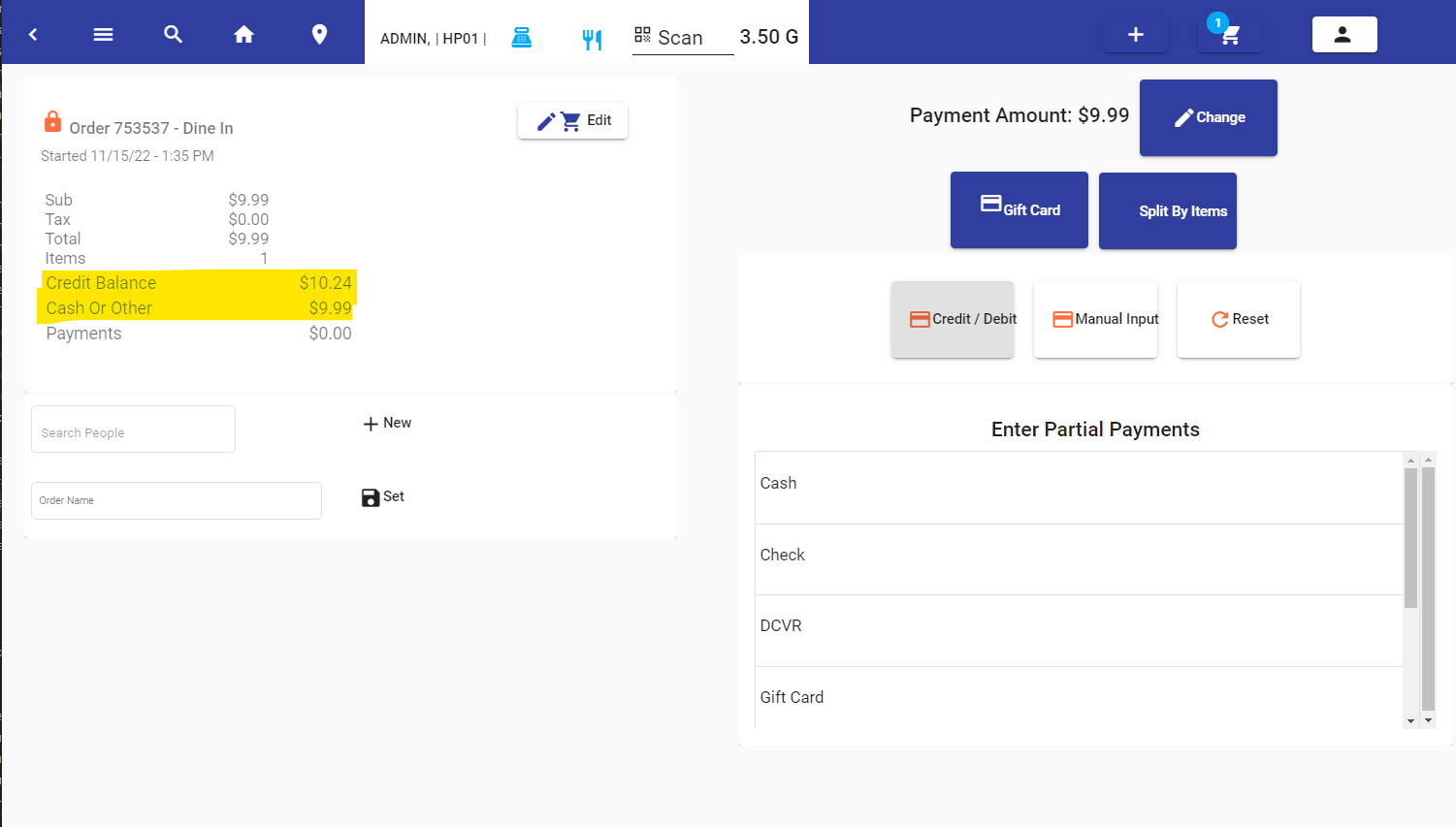
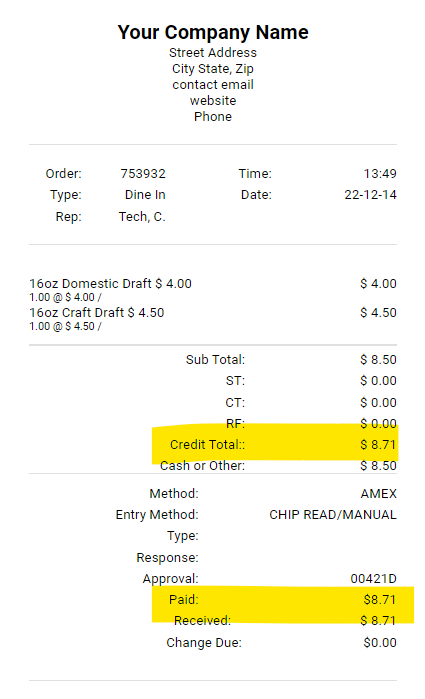
Cash Discount offers two separate totals: one if the customer pays by credit card, and one for cash or other non-credit payment methods.
When a payment is made, the percentage applies toward the portion of the order being paid. If it's the whole payment, the full invoice amount will show. If it's a partial payment, the percentage applies only to the amount being paid.
Check Provided to Customer Prior to Payment
Order Payment Screen
Receipt Provided when Payment Occurs
Transaction Settings
Set up the percentage value to charge in Settings → Transaction Settings. Enter the cash discount percentage and enable it for the desired transaction types.