Reporting & Auditing
Single Store and Multi-Location Reporting
Overview
This section covers much of the data section of Pointless. The ability to review your information from an overview of reports to pulling up an individual sale or inventory item change is shown here.
As you can review the table of contents on the side of this section, we won't list out the details here. But please use this section along with the playgrounds to test these features out.
Authorizations
In order to access these areas you will need proper authorizations. For the Menu, you will need access as determined in your menu controller. And for Individual Modules, and data access you'll need the authorizations set up in the User Authorizations.
Sales Reports
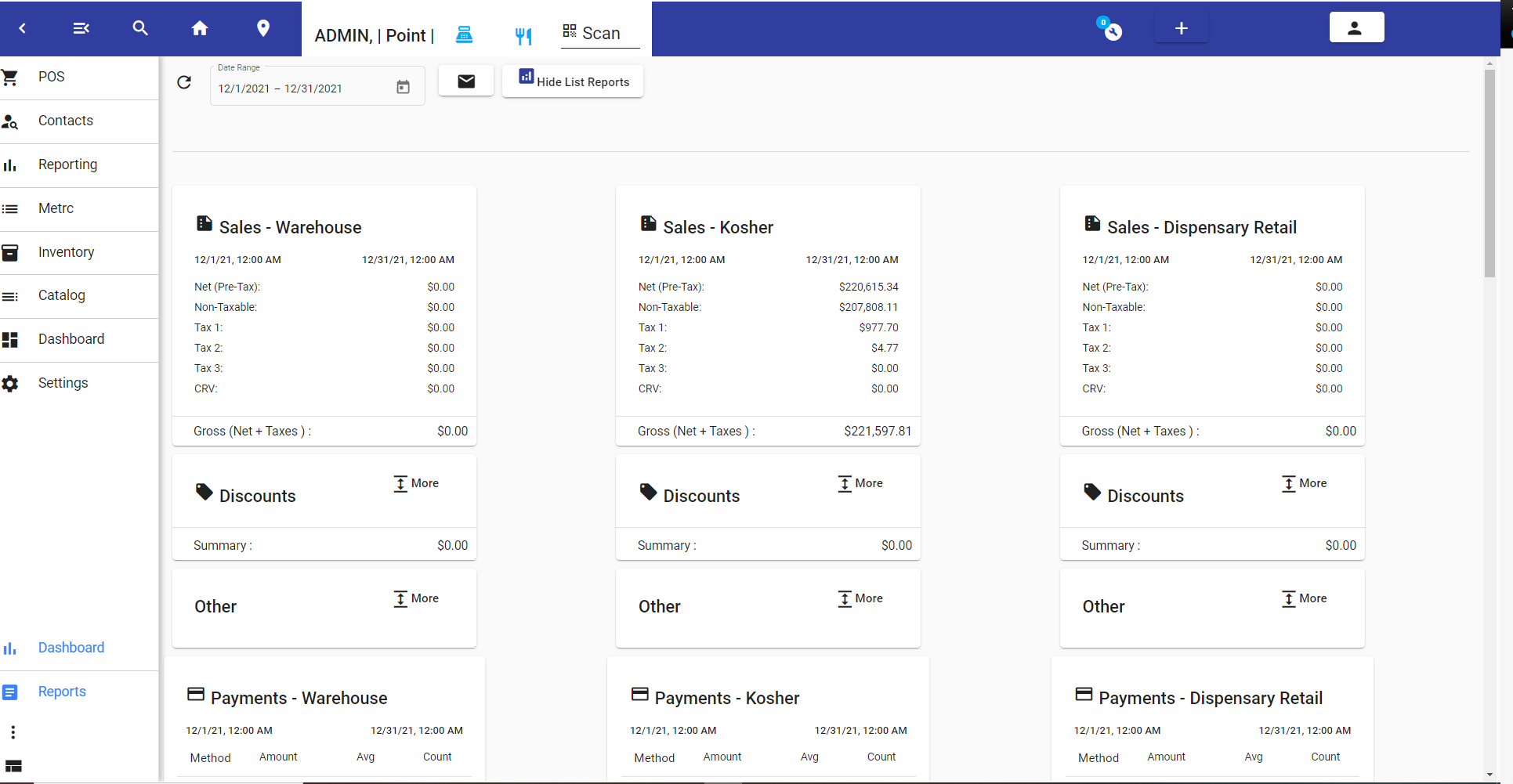
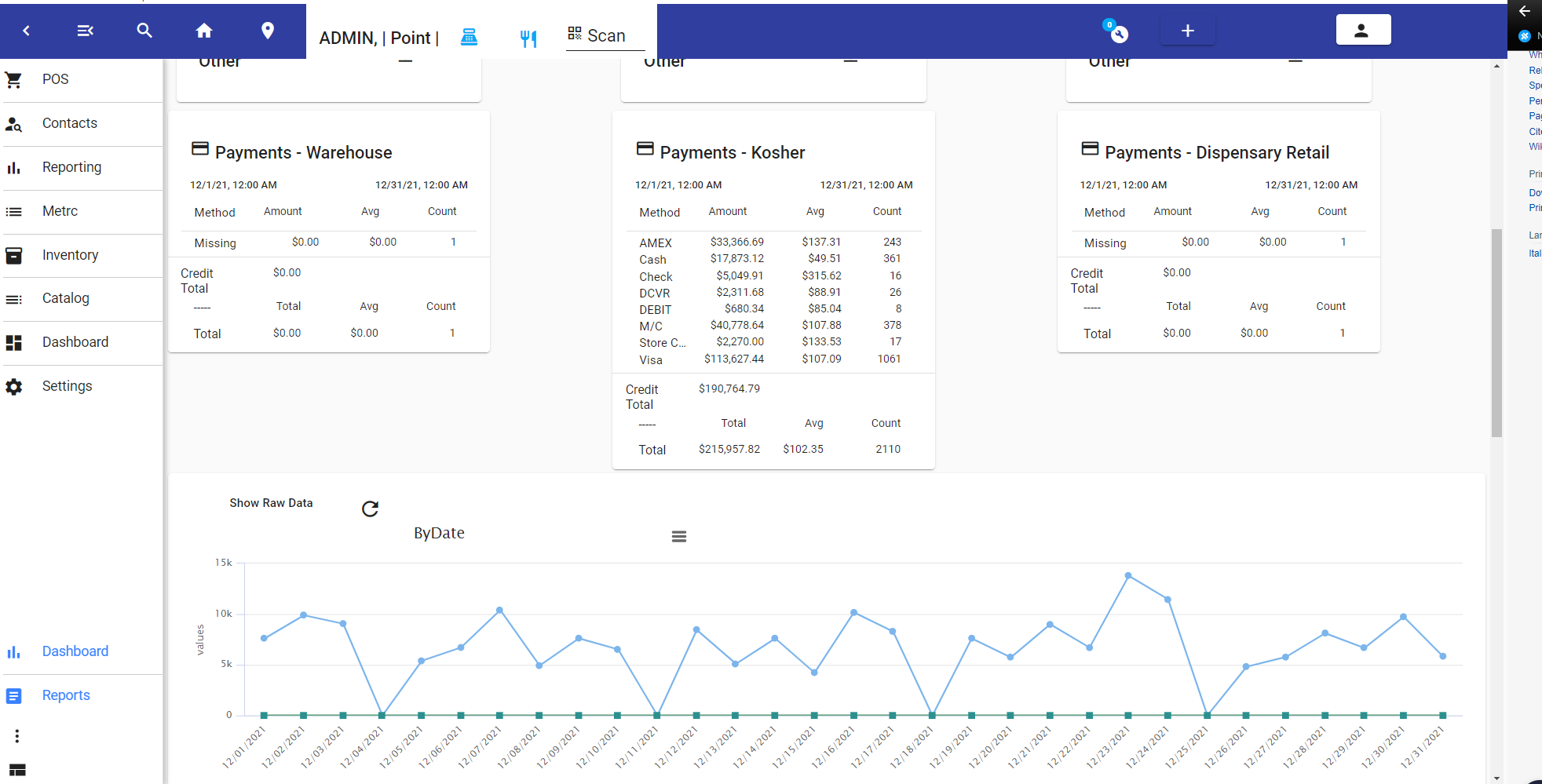
Basic sales reports are viewed from Reporting. You can then enter a date range and the sites you have access to will show the sales.
In this case, we have 3 locations, but only one has sales data.
We have a number of optional reports. You will also want to review our custom report section as well as the dashboard system to see the reports you can use for sales, inventory, employees, discounts taxes and more.
Balance Sheet Audit
The balance sheets window is found by going to POS - then the lower section, if it's minimized use the three dots. Here you can filter the date range and use the other filter options to review any balance sheet from the present and past.
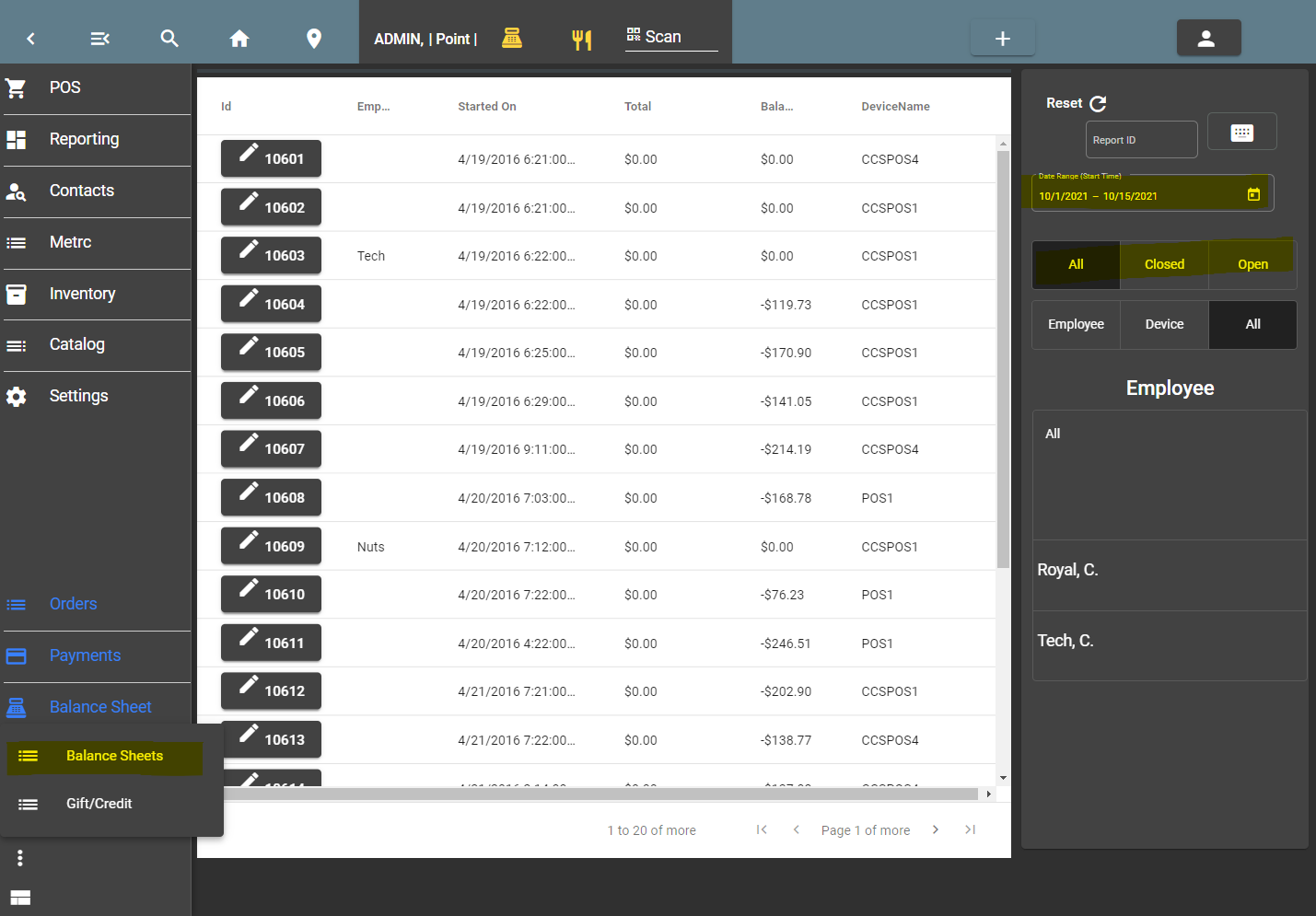
Balance Sheet History
Without having to open the whole balance sheet, you can select the row to do a quick popup view. You can press the button to open the balance sheet.
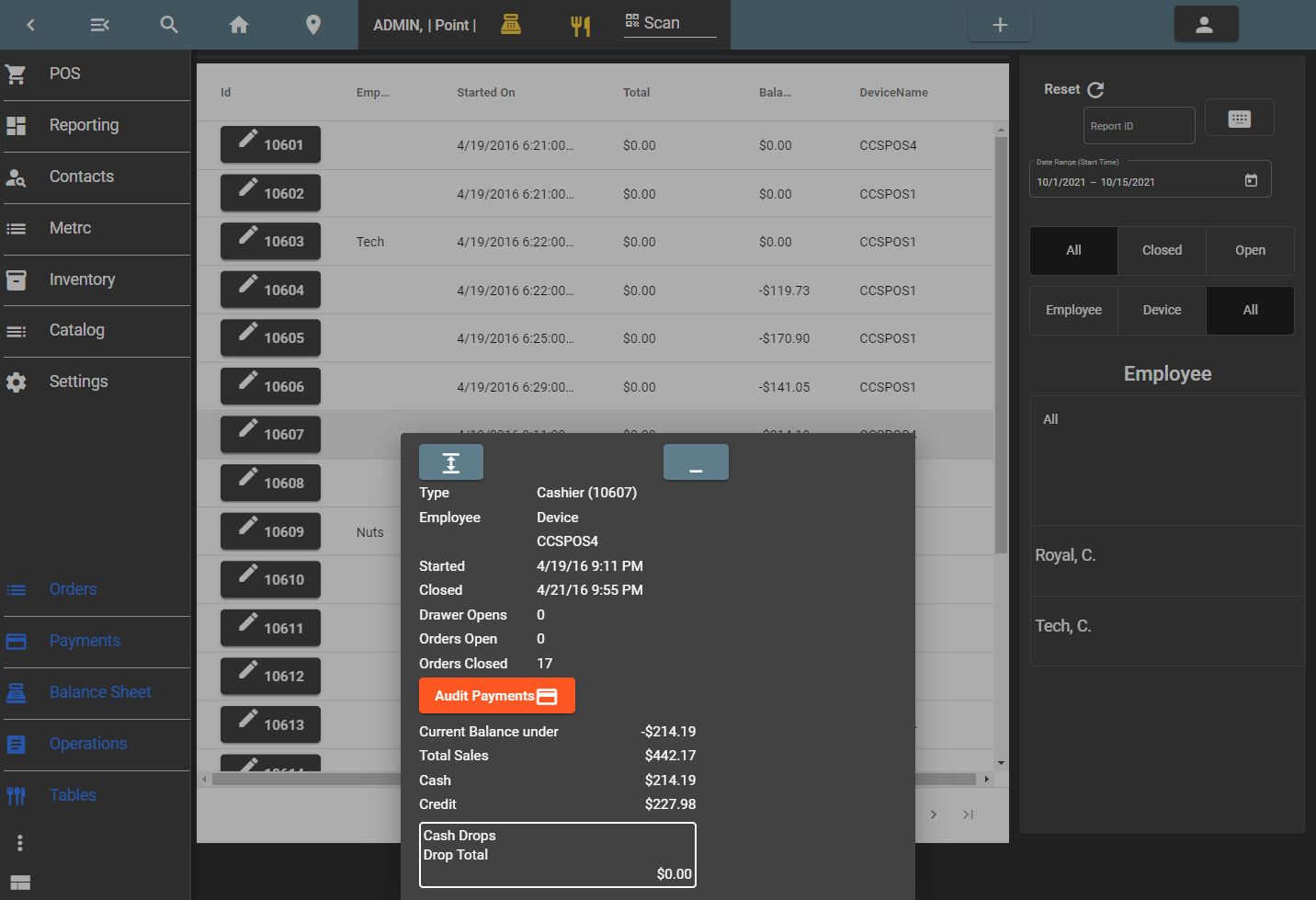
View Balance Sheet
Payment Audit
The payment list window is found by going to POS - then the lower section, if it's minimized use the three dots. Here you can filter the date range and use the other filter options to review any payment sheet from the present and past.
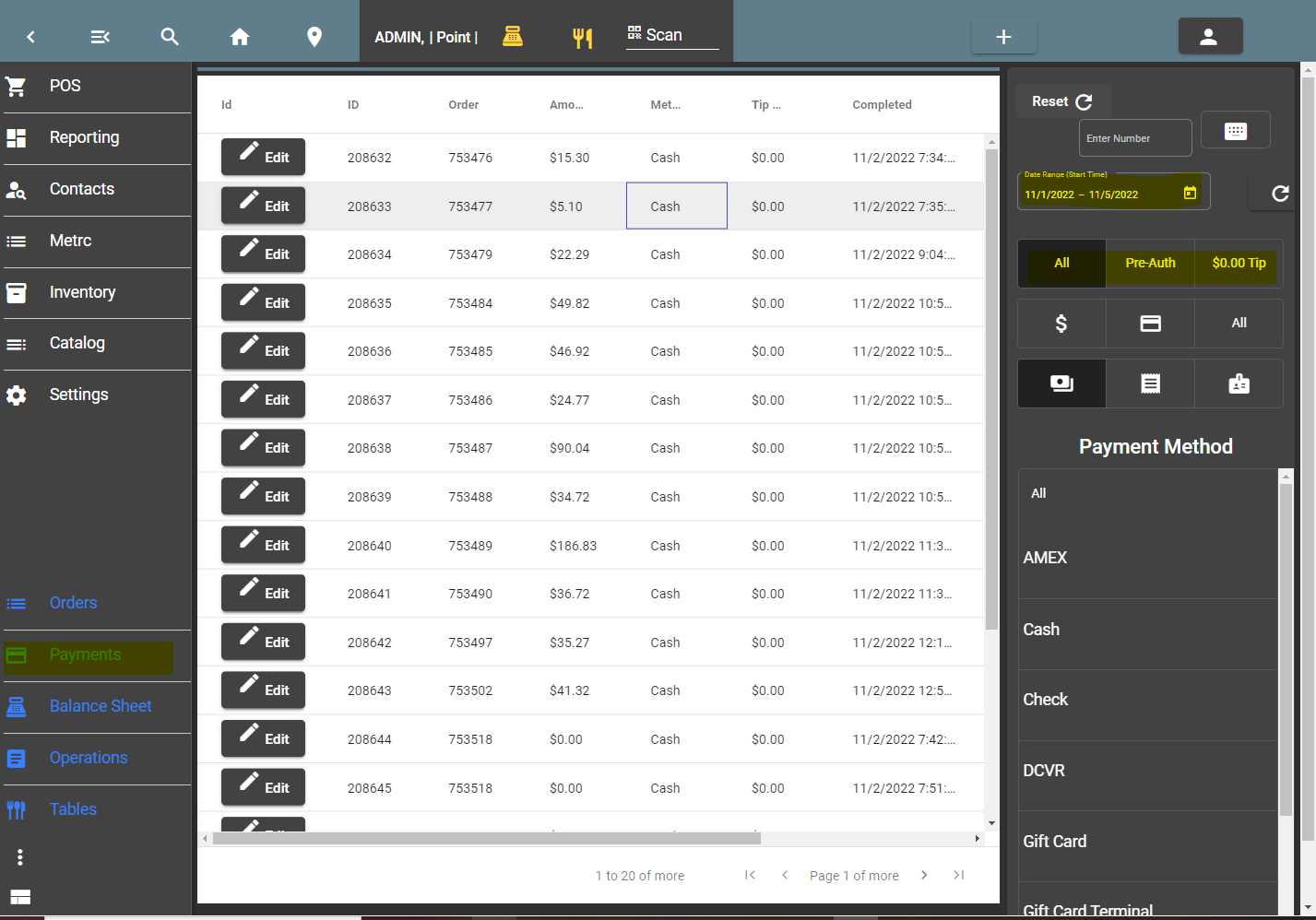
Payment List Audit
You can quickly view payment by selecting the row. To open the order with the payment, you can press the button Edit button from the list.
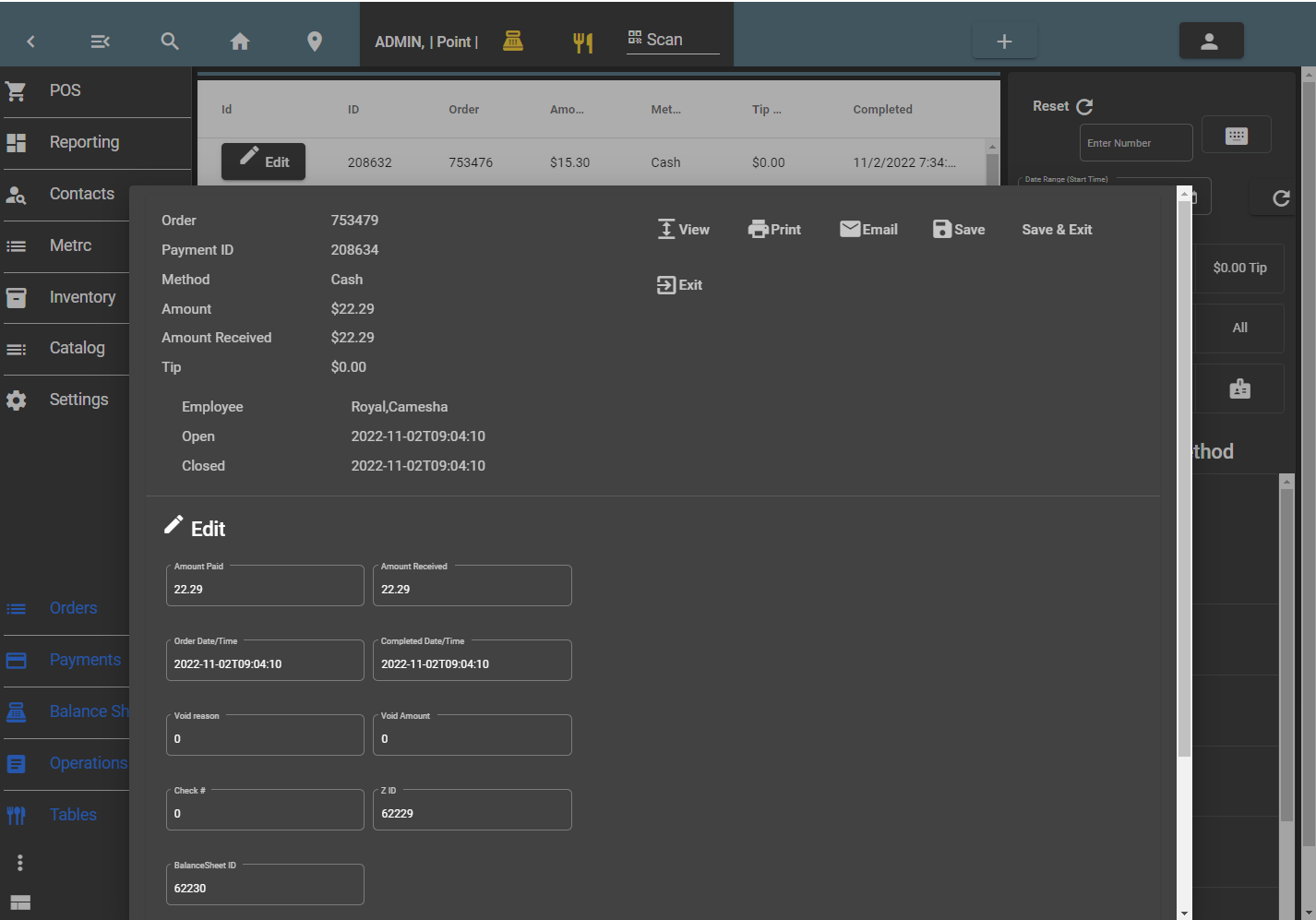
Payment Pop Up
Order Audit
This section should be fairly familiar to most users because using transactions is a regular behavior. However, there are a few features that might be used less frequently. If authorized the user can look up orders from history, allowing them an audit of orders.
One of the more useful features for reviewing orders by a date range is to switch the view to 'List View' which you can see above the order cards on the first window. And has been toggled to 'Grid iew' on the second window.
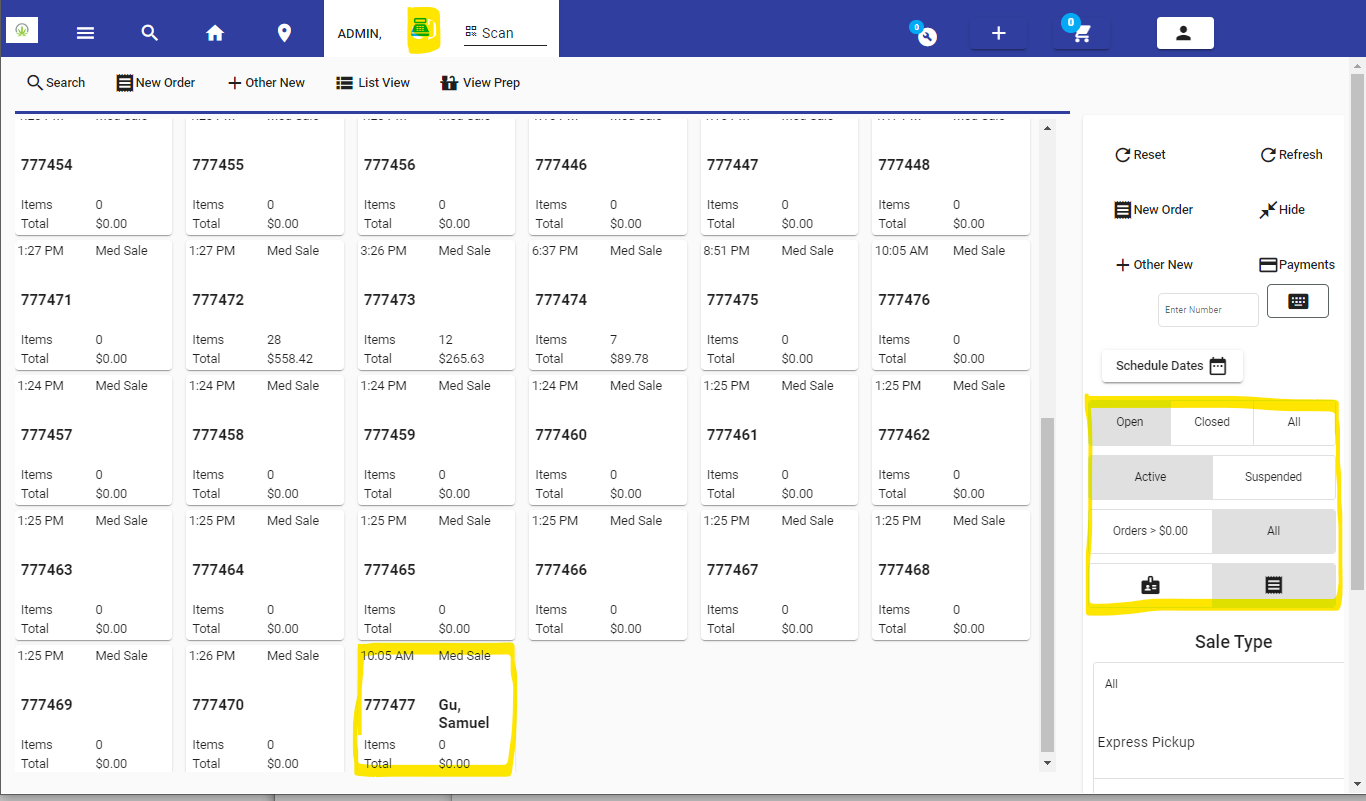
Order Filter
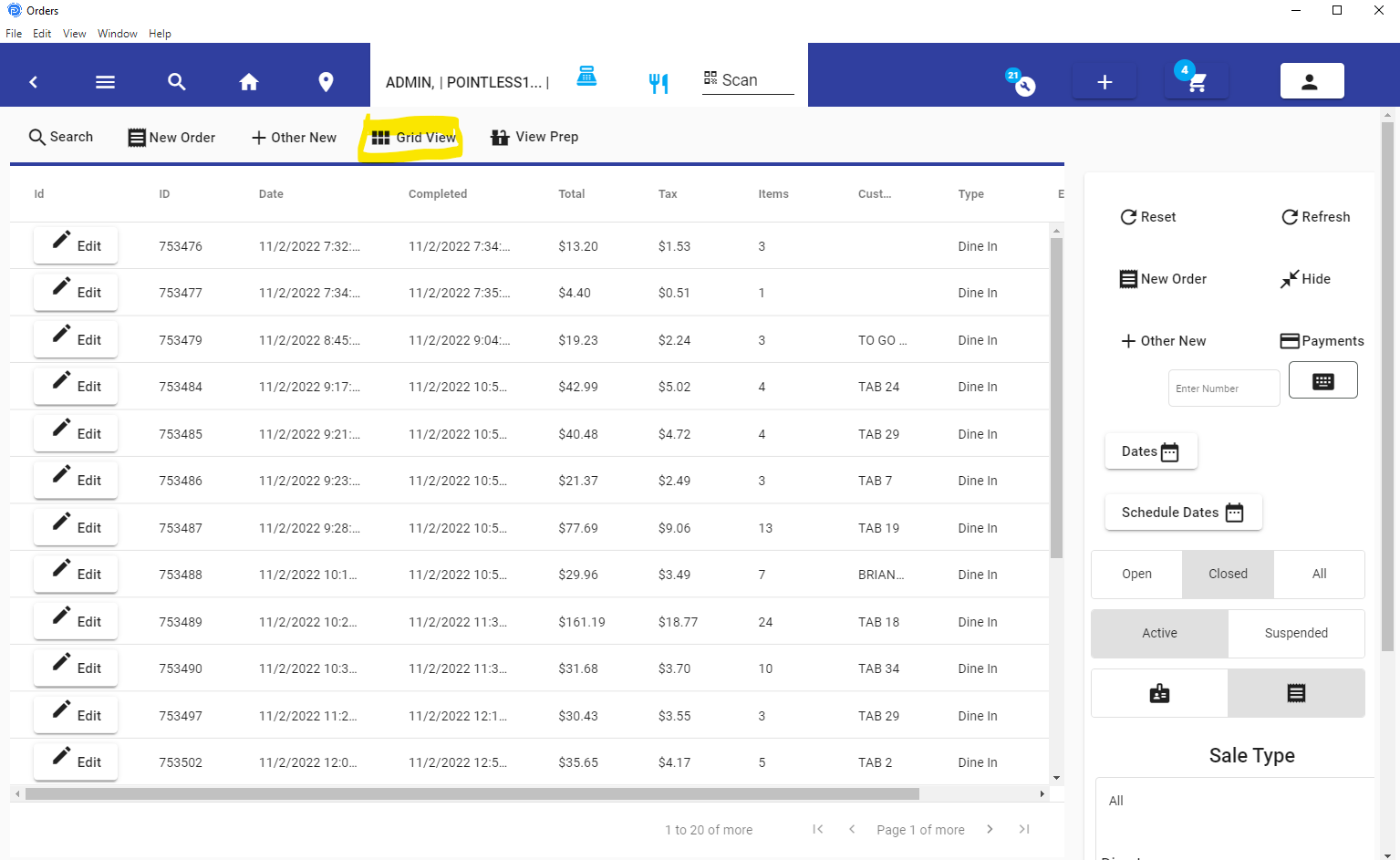
Order List View
Item Transaction Audit
Much like the payment or the order audit, this allows you to review item history line by line separate from the order, and the payments.
You may use the filter on the left, and then by pressing 'edit' you will be able to view and access the order the item was included on.
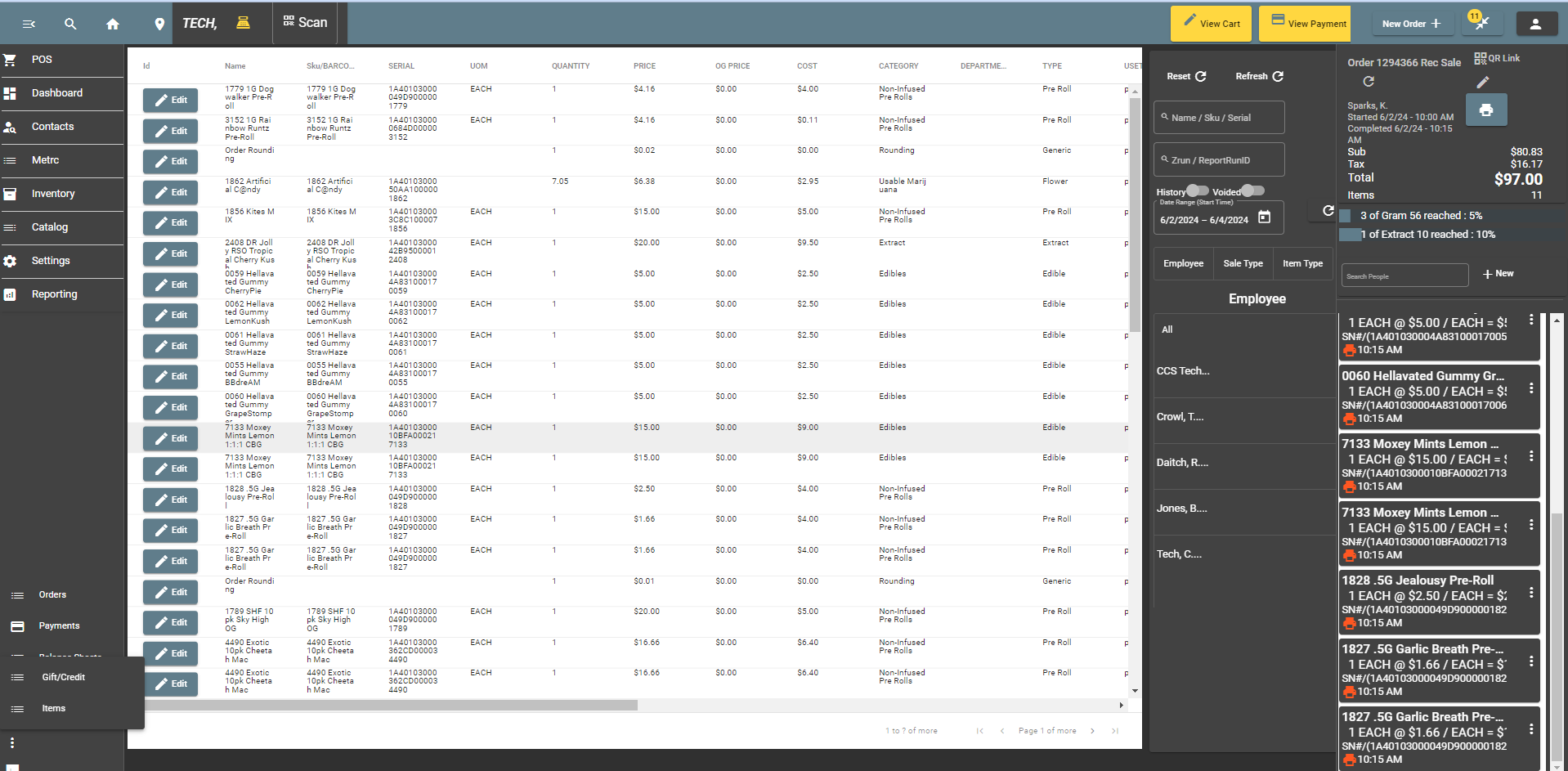
Item History
Inventory Audit
Much of this section will occur in inventory as well. The features for Events, allow you to review any changes to inventory over time. Of course, you can modify inventory, location, count, etc. You will find those features in the inventory section.
Seen below you can see that the Affogato Bar has been selected, and events on the right show how it was changed over time. This can be a sale, or it can be a modification by a user in the inventory system itself.
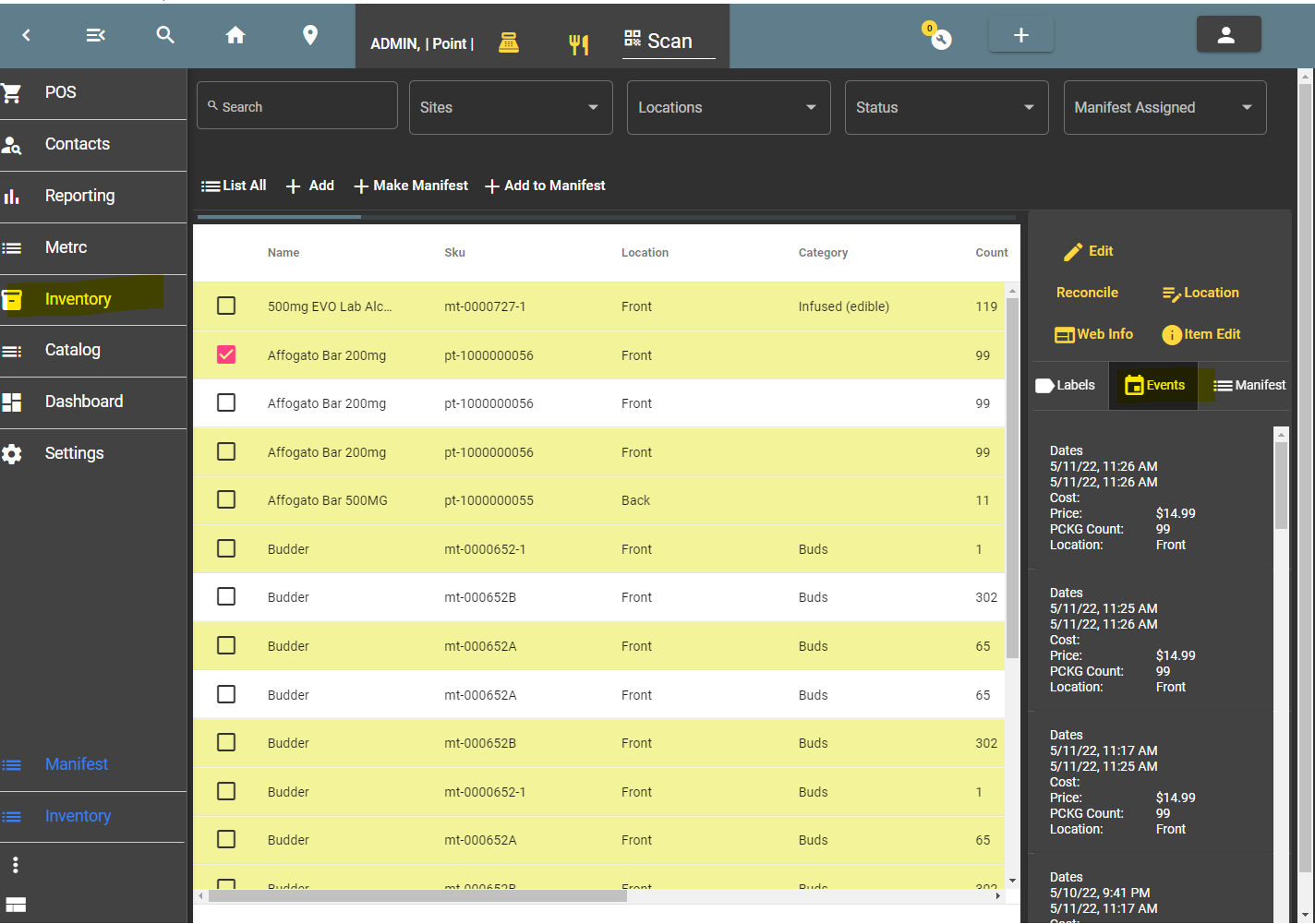
Inventory Audit
Product Audit
The product catalog has an events section as well. This allows you to see changes to products.
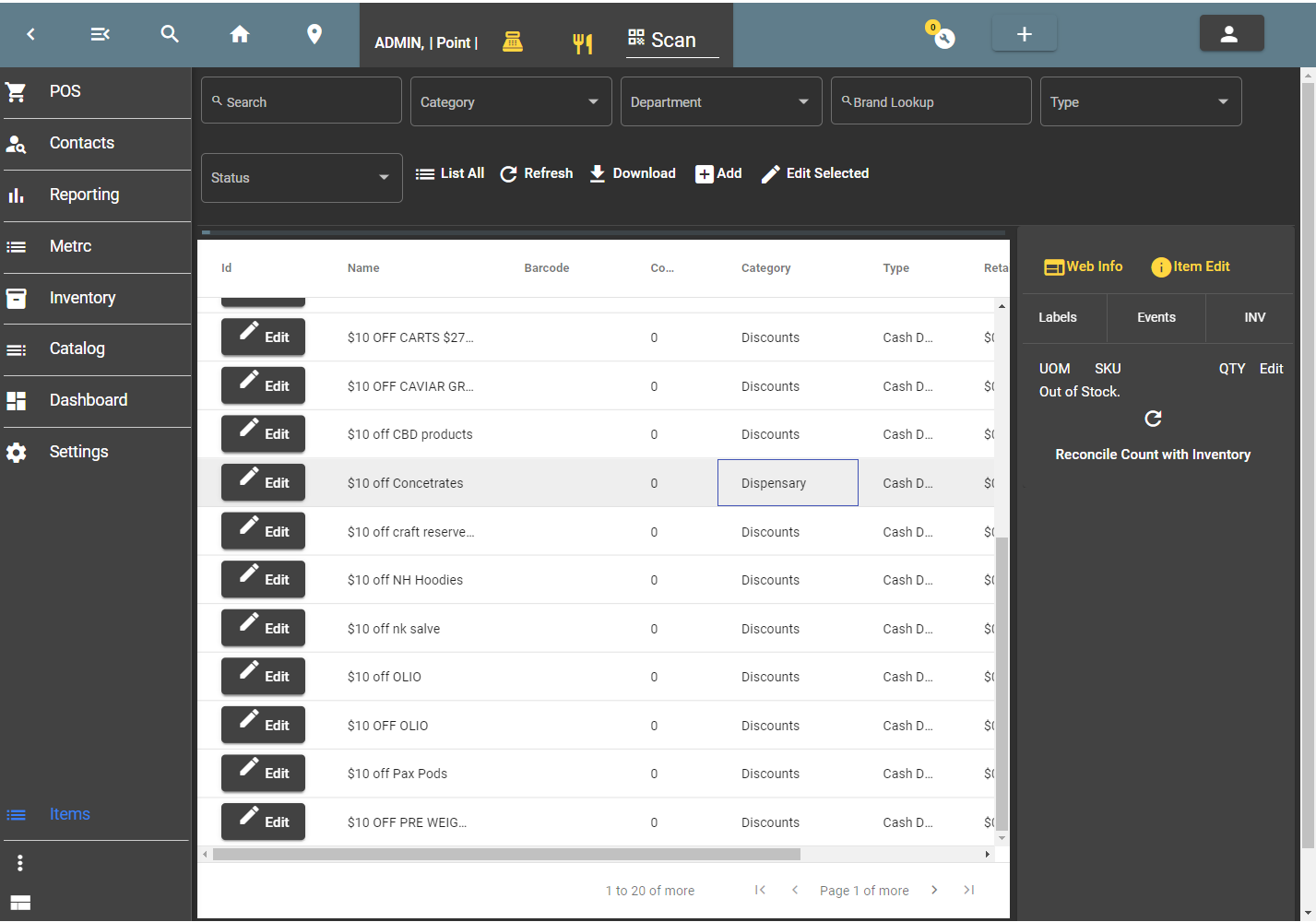
Event Log of Products
Auto Gratuity
Auto gratuity refers to gratuities that are not part of the payment, like a credit card tip, but instead part of the transaction. The Auto Grat values are not included in the gross sales. When you review payments and compare them to gross sales, this is necessary to realize. Here we have an example image of how that would look.
You can see that the payment total is $28.62, which includes the 'Auto Gratuity'. The gross sales are $26.52, which is $2.10 less than the total payments. The Auto Gratuity is listed as 'other charges' below and is highlighted.
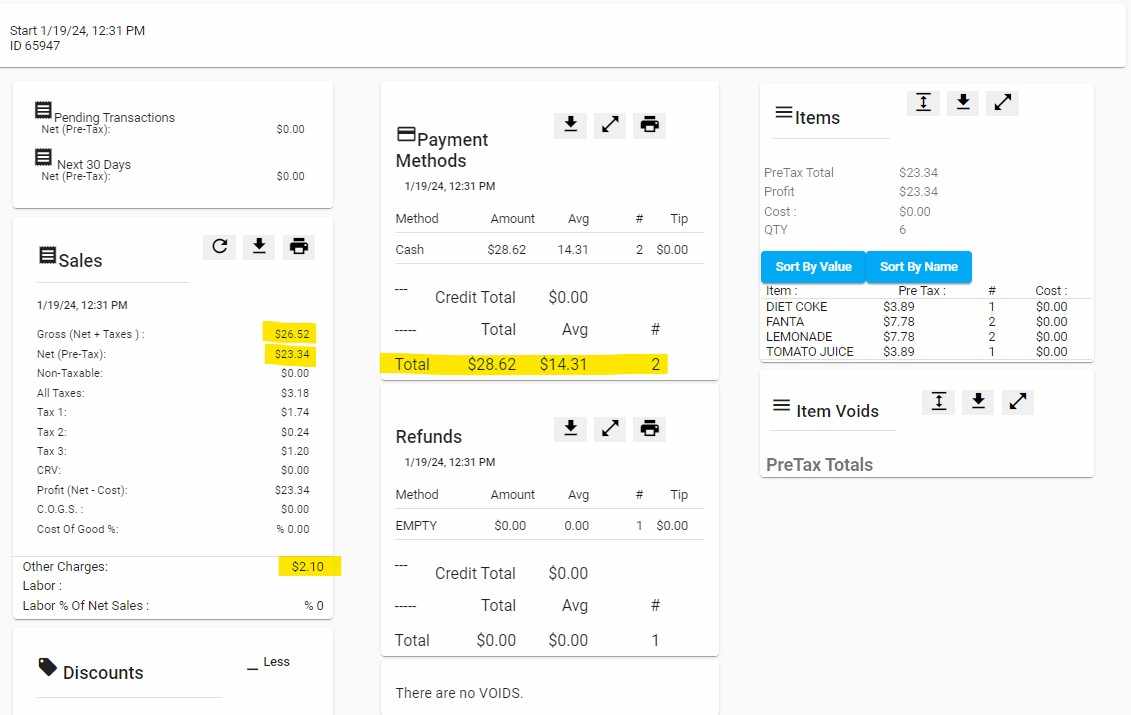
Auto Grat Report