Apple Pay (DataCap)
Apple Pay lets customers pay from their iPhone, iPad, or Mac using Face ID, Touch ID, or device passcode. The Apple Pay integration runs through DataCap PayAPI — PayAPI must be enabled first.
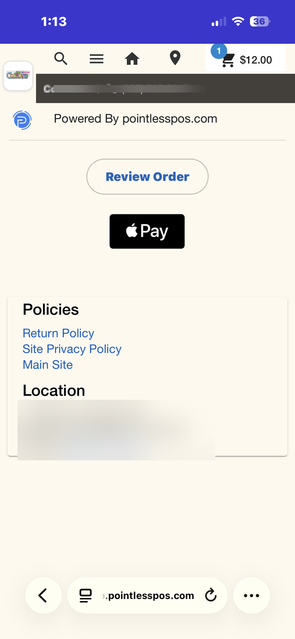
The Apple Pay button only appears in Safari on Apple devices.
Prerequisites
- DataCap PayAPI enabled (see DataCap PayAPI)
- DataCap merchant account with Apple Pay enabled
- DataCap Apple Pay Merchant ID and public key from your DataCap provider
Enabling in Transaction Settings
- Navigate to Settings > Software & Hardware > Transaction Settings.
- Ensure DataCap PayAPI is enabled.
- Enable Apple Pay.
- Set the Apple Pay Merchant Name — the name displayed to customers during the Apple Pay checkout flow.
- Save the transaction settings.
Customer Experience
When a customer reaches the payment step in Safari on an Apple device:
- A Pay with Apple Pay button appears in the payment panel.
- The customer taps the button and authenticates with Face ID, Touch ID, or passcode.
- The payment is processed through DataCap.
- A confirmation appears and the order is updated.
Pre-Authorization
When an order type is configured for pre-authorization, Apple Pay runs in pre-auth mode automatically. The customer authorizes a hold on their card, and the charge is captured later when the order is finalized.
After pre-auth:
- Complete Payment — captures the authorized amount and charges the card.
- Reverse Authorization — cancels the hold and releases the funds.
Tip Presets
Customers can be presented with preset tip options and a custom tip entry during payment. The tip percentages and custom entry label are controlled by the Guest Tip Presets (% of total, e.g. 15,18,20) field in Transaction Settings.
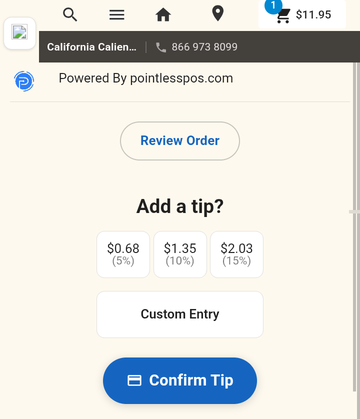
- Guest Tip Presets — Configure tip percentage options for wallet and QR payments
Troubleshooting
| Problem | Solution |
|---|---|
| Apple Pay button doesn't appear | Customer must be using Safari on an Apple device (iPhone, iPad, Mac with Touch ID) |
| "Apple Pay not enabled" | Apple Pay has not been enabled in Transaction Settings, or PayAPI is not enabled |
| Payment declined | The customer's card may be declined or have insufficient funds |
Related
- DataCap PayAPI — Parent integration required for Apple Pay
- Google Wallet — Same PayAPI integration for Android wallet payments