Users
Staff, Customers, Patients, Brands, and Vendors
Users - Customers, Patients, Brands, and Vendors
There are many types of users in PointlessPOS. Both staff and customers are considered users. And some users like brands are vendors never use the software but fall in the same bucket of ‘users’.
Users are interchangeably referred to as clients, staff, users, admins, managers, and other entities that use the software.
Different users have different features, and properties they need to be assigned. It’s up to your business processes to determine what these are.
Your customers could be assigned the following types as examples:
- Customers
- Patients
- Guests
- Club Members
To make and edit User Types go to Settings - Authorizations User Types.
Reasons for Different User Types
Customer information is used to help process a transaction. Sometimes it’s used to validate a birthdate, for liquor sales, cannabis, or other age-limited items.
Sometimes it’s used to store Points or Reward information. It can also hold store credit and house account information for payments that are suspended and the customer owes to the business at a later date.
References to features:
- Rewards Points - These can be updated by managers and admin. They value of the point is assigned in Settings - Transaction Settings.
- Store Credit - This value can be updated or reviewed under Contacts - Submenu Store Credit
- House Accounts - These values can be reviewed if you search under 'house account'
- Transaction History - Transaction history is specific to the user, both the user can look up their history from their profile and so can staff.
Profile Search
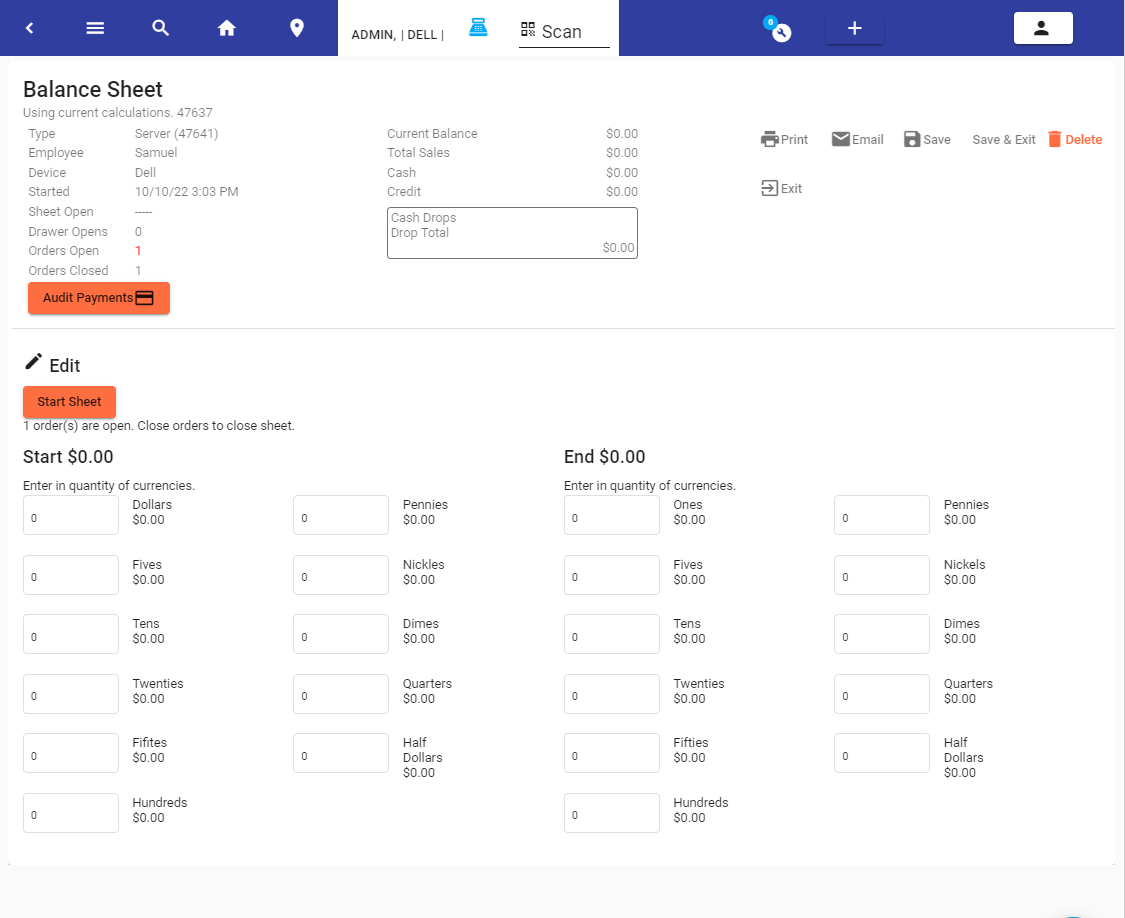
Profiles can be Searched from the sidebar. Profiles can be searched based on any major field. Name, Account, Email, Phone, UserName
User Profile
The following screen is an example. In some instances, for example, a Medical Customer, there are certain features of validation required.
User Type
The user type defines the behaviors and authorization of the user. This is used in tandem with the Tab ‘Settings’, where the 4 main types of users are defined. By default when a new user is created it defaults as ‘User’. This allows people to self-register on the app when using it as a website for online or mobile orders.
Medical Patients
Medical patients have a bit more validation than other user types.
For Medical patients, the following requirements are validated when assigning them to the order.
- State ID
- DOB
- Name
- DL EXP
- DL Number
- Med License Number
- Med Expiration Number
- Limits - If Applicable.
Transaction History
The transaction history can be filtered using the date range.
Address/DL Info
This area stores the individuals' address and Driver's license Info.
Settings
Settings define the authorizations of users at a low level. All users are defaulted as ‘user’. Staff and administration are described below.
Not all users will have a login or password. They may be created at the store, and so you may have no user access for regular users. But they will have the type ‘user’ defined as you see in the screenshot below.