Users - Staff
Staff - Employees
Staff types in User Profiles are set under Settings. Staff types are the following:
- Employee
- Manager
- Admin
These all include granular access and behavior. This also applies to clients.
Employee List
The employee list is from Contacts on the sidebar, then the submenu below, Employees.
Regular users are guaranteed not to be given the privileges of staff. This is done by requiring an additional record to be created for the employee. So although it’s an extra step of work, it ensures a double barrier against someone accidentally giving permissions to a user, such as access to sales, reports, or other features they should not have.
PIN Codes - Windows & Android Apps only
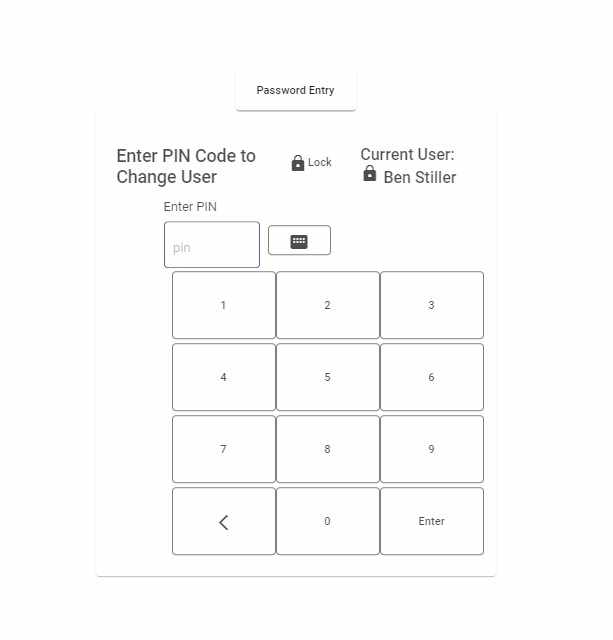
Employees are allowed to have a PIN Code. This is for types of users that are not Managers or Admins. The setting should be ‘Employee’ in the User Profile under the Settings tab.
The employee can currently enter their pin code from the screen when a manager is logged in and accesses their account. They currently can not change their pin code on their own.
The PIN Code is only allowed on the Installed Apps when you have assigned a PIN Code variable in the webconfig file. It's not on the browser app.
You will find the PINCodeToken Variable in the web config under appsettings.
- It’s suggested you use a very long variable.
- It must start with PINToken
- You would use the same PINToken on each terminal that you want to allow PIN Entry.
To enter the PIN Token on the device, go to: Settings - Device Info and enter the PIN Token: (it's recommended to copy and paste since it should be a long string.)
Once you copy and paste the token, you must restart the app for the PIN Code to show up on the login screen.
PIN Login
Locking Terminal According to the User-Assigned Balance Sheets
To set users specific to the balance sheet on their terminal.
Enable the feature in settings - interface settings - order settings - balance sheet lock.
When a user on a POS terminal tries to log in with a PIN, only the current user assigned to that terminal will be allowed to use it.
Managers can use their username and password to log in, or their PIN code. Other users may log in with their username and password.
User Type Authorizations
User types define the roles and granular permissions for Admin, Manager, and Employee levels. To apply and review the full list of available authorizations, see User Types.